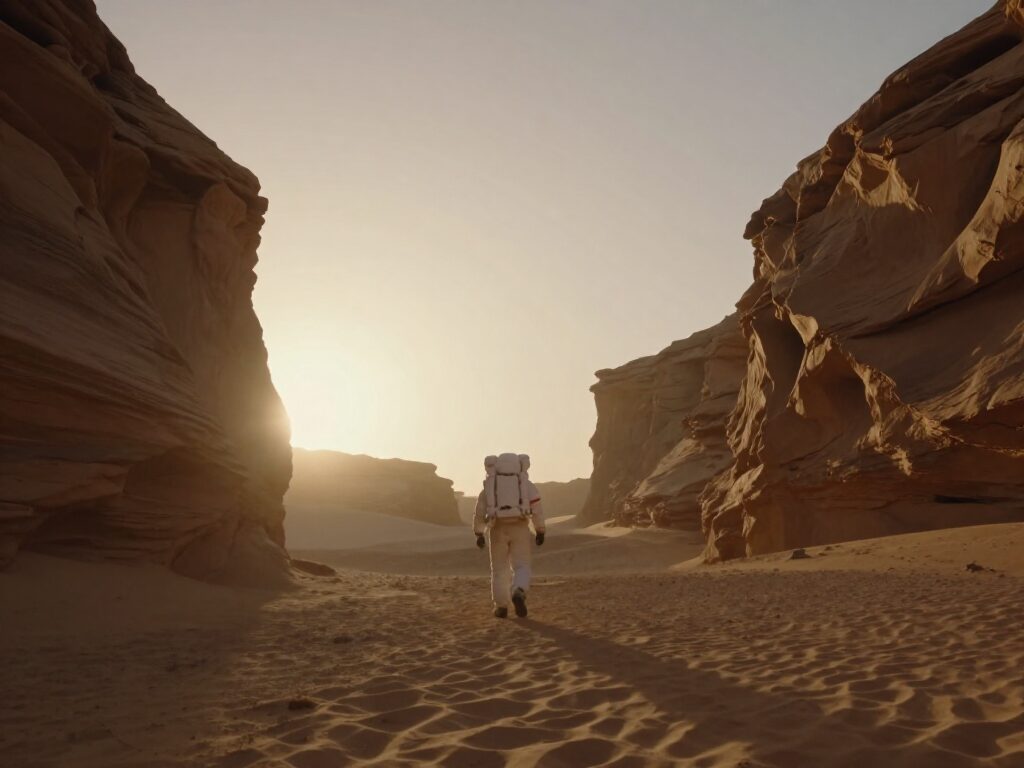
Reference to Video: Keep Your Character, Change the Scene
Upload a reference image of a person, character or product and describe the action — Wandura generates a video where your subject stays recognizably the same, shot after shot. Perfect for brand mascots, UGC creators and story content.
The Same Character, Every Single Shot
The hardest problem in AI video is identity drift — your character turns into someone else between clips. Reference to Video anchors each generation to your uploaded image, so the face, outfit or product design stays consistent while the scene, action and camera change with your prompt. The pair below is a real result: the character reference on the left is the exact input that produced the clip on the right — same identity, dropped into a neon-lit street.
Try Reference to Video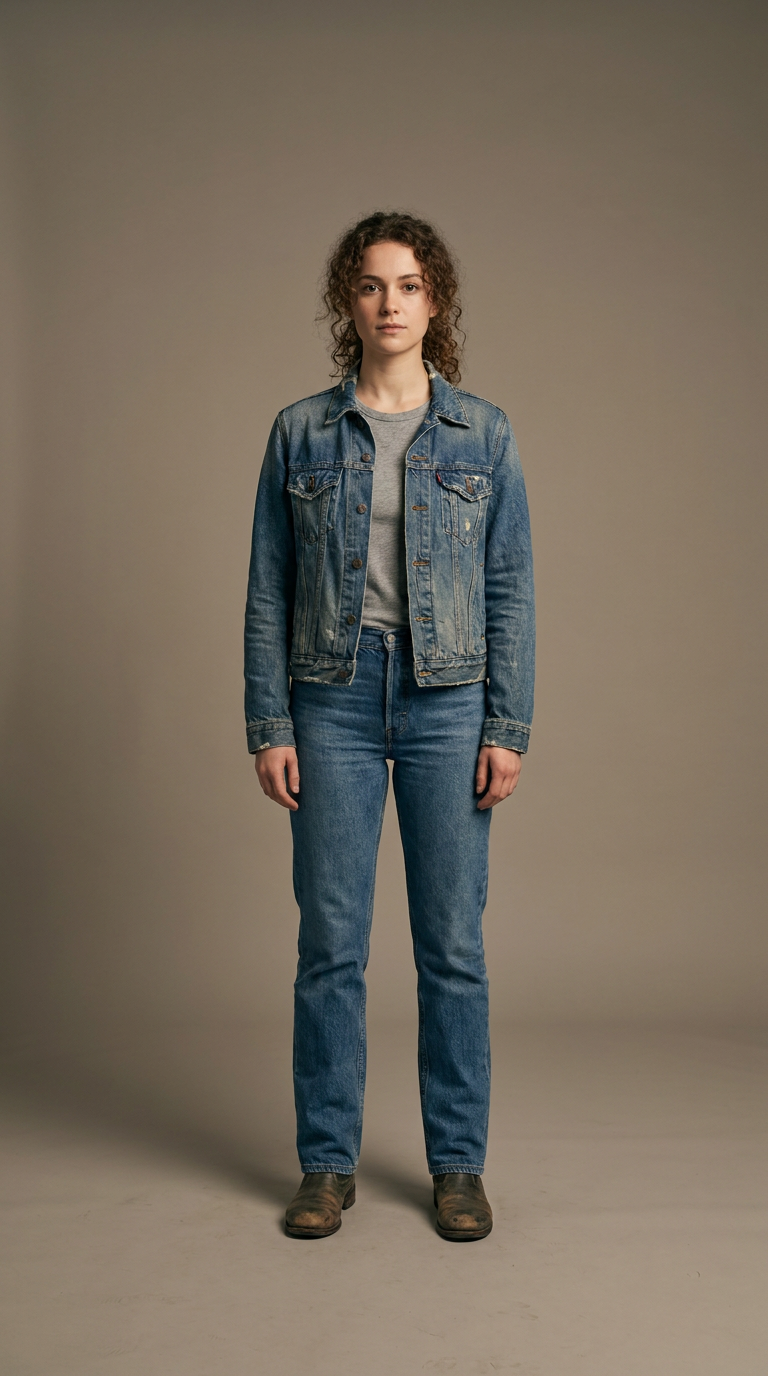
5 AI Models, One Subject → Video (Ref) Tool
Bring a Brand Mascot to Life
Upload one clean render of your mascot and generate an entire content series — waving hello, unboxing a product, dancing for a holiday post — with the character staying perfectly on-model in every clip. The clip here is a real generation from the single reference shown above.
Try Reference to VideoA Consistent Virtual Creator for UGC
Build a recognizable face for your channel without hiring talent. One reference portrait — like the example input shown here — becomes dozens of talking-head and lifestyle clips: same person, new scene each time, ready for TikTok and Reels in 9:16.
Try Reference to Video
Products in Motion, Identity Intact
Logos and product designs must not warp. Anchoring the generation to your product shot keeps labels and shapes faithful while the video adds rotation, hands, environments and camera moves.
Try Reference to VideoEpisodic Stories with a Locked Cast
Kids’ stories, comics and narrative shorts fall apart the moment the hero changes face between scenes. Reuse the same reference across every scene of the script, vary only the motion prompt, and cut the clips into a coherent episode.
Try Reference to VideoPreviz and Pitch Videos with a Consistent Lead
Selling a concept is easier when the character survives from shot to shot. Generate every beat of the pitch — intro, product moment, closing scene — from one reference image and present a storyboard that already moves.
Try Reference to VideoHow It Works
Step 1: Upload a Reference
Add a clear image of your subject — a character, a person or a product. This is the identity the video will preserve.
Step 2: Describe the Motion
Write what the subject does — "walks forward, looks at camera". Pick aspect ratio, resolution and duration (4–10s).
Step 3: Generate the Video
The model animates your subject into the scene. Chain the result into Video Upscale, Extend or Lipsync to finish the shot.
How Much Does Reference to Video Cost?
Every model below runs on one Wandura credit balance — pay only for what you generate, with no separate subscription per model.
| Model | Pricing |
|---|---|
 Kling O1 (video reference) Kling O1 (video reference) | Clone motion/style from video |
 Dreamina Seedance 2.0 (ref) Dreamina Seedance 2.0 (ref) | Identity-preserving |
| Kling V3 Pro | Cinematic |
 Veo 3.1 Veo 3.1 | Premium · audio |
| Kling 2.5 Turbo | Draft · fast |
FAQs
It generates video from a reference image while preserving the subject’s identity — face, outfit, product design — so you can produce many clips of the same character without them drifting into a different person.
Image to Video animates the exact photo you upload. Reference to Video uses your image as an identity anchor and can place the subject into new actions and framing described by your prompt.
The tool runs on Kling O1 (video reference), Dreamina Seedance 2.0 (ref), Kling V3 Pro, Veo 3.1, Kling 2.5 Turbo — the same lineup as Image to Video, switchable per generation.
Clips of 4, 6, 8 or 10 seconds at 720p or 1080p in any supported aspect ratio, including 9:16 vertical. Model prices are listed next to each model name and charged per generation.
A clear, well-lit image where the subject fills most of the frame — front-facing for people and characters, clean angles for products. The more readable the identity in the reference, the more faithfully it carries into the video.
Dreamina Seedance 2.0 (ref) is the identity-preserving specialist in the lineup — pick it when staying on-model matters most. Kling V3 Pro and Veo 3.1 trade a little identity strictness for more cinematic motion and image quality.
Yes — set the Videos count up to 4 per run. All takes use the same reference and prompt, land together in your Creations, and you can chain whichever one reads best straight into the next tool.
Yes — that is the point. Keep re-using the same reference image with different motion prompts and you get an episodic series where the character stays consistent across every clip.
Chain it forward without leaving Wandura: upscale the clip, extend it, add lipsync for dialogue, or generate a matching soundtrack with Auto Sound. Everything is saved to your Creations.