AI Text to Video: Type a Prompt, Get a Video
Describe a scene and Wandura turns it into a video clip — ads, UGC-style selfies, cinematic shots. Ten text-to-video models in one tool, from cheap drafts to premium clips with native audio.
From One Sentence to a Finished Clip
No footage, no actors, no editing timeline. Write what happens — who is in the frame, what they do, how the camera moves — pick a model and a duration, and Wandura renders the clip in minutes. Draft cheap with LTX 2.3 Fast, then re-run the same prompt on Kling V3 Pro, Veo 3.1 or Sora 2 Pro for the final take.
Try Text to Video10 AI Models, One Text → Video Tool
UGC-Style Ads at Scale
Generate authentic-feeling creator clips — "a young woman shows a skincare product to the camera, cozy apartment, selfie style" — without booking talent. Iterate hooks and angles in 9:16 vertical, then A/B test the winners.
Try Text to Video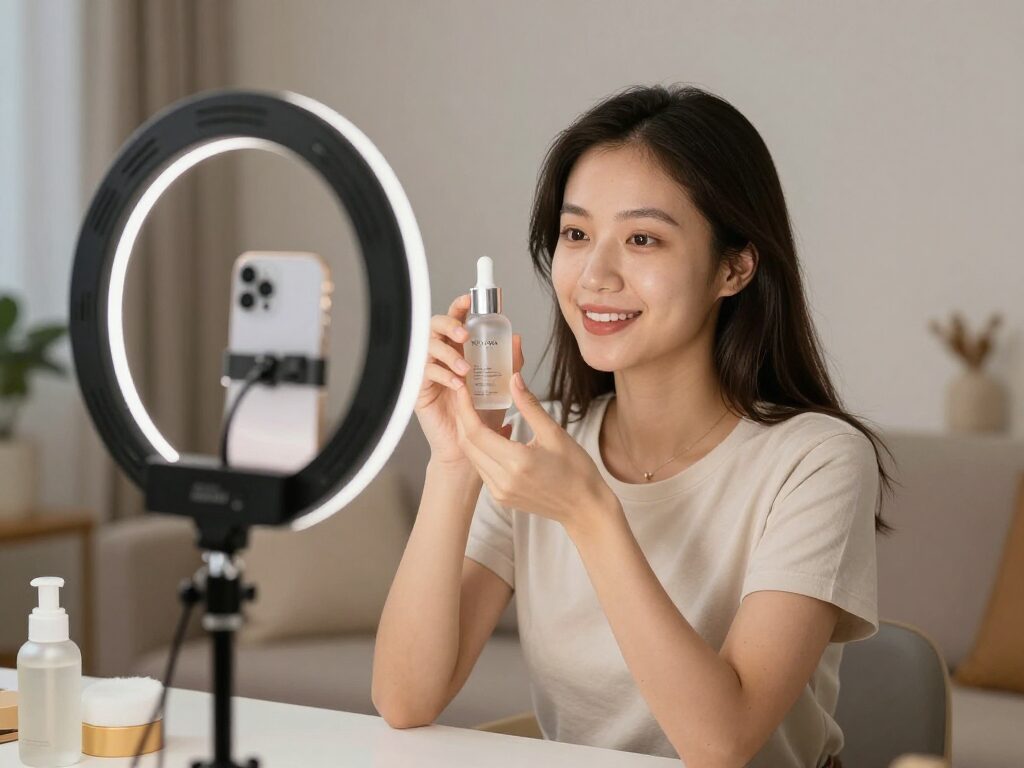
Cinematic Shots for Films and Trailers
Describe the shot like a director: framing, movement, light. Kling V3 Pro and Veo 3.1 handle epic wide shots, slow push-ins and dramatic lighting — with Veo generating synchronized native audio in the same pass.
Try Text to Video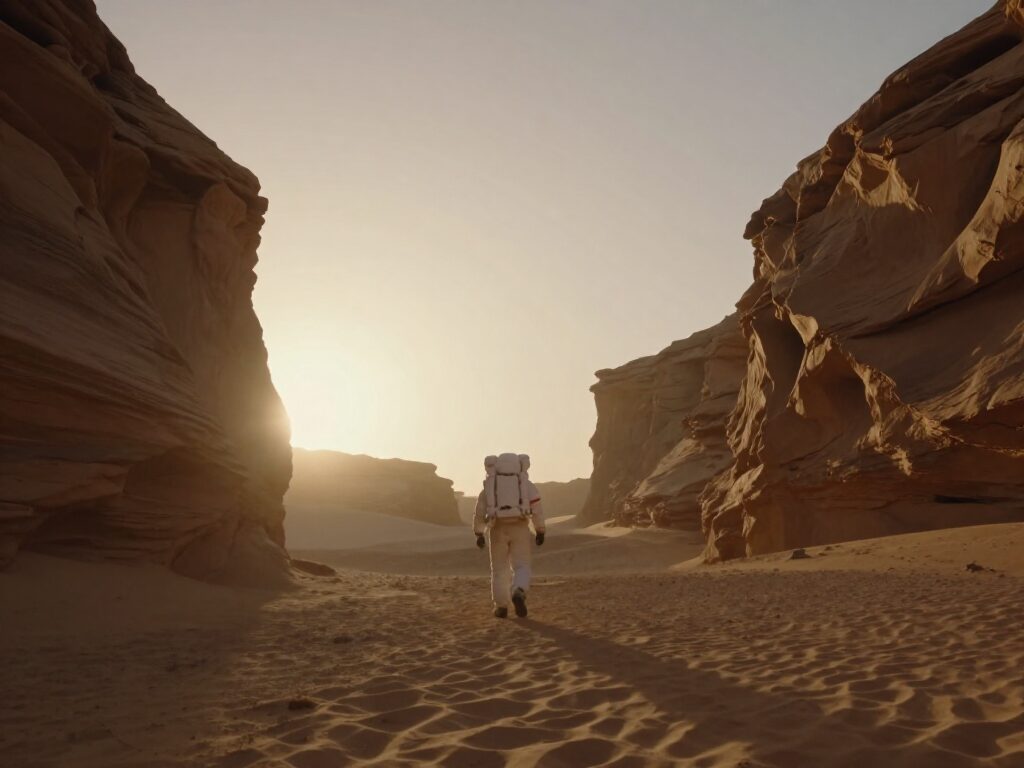
Storyboards and Previz in Minutes
Before committing budget to a shoot, generate every scene of your script as short clips. Cheap draft models make it viable to previsualize an entire storyboard, then upscale or extend the shots that work.
Try Text to Video
B-Roll on Demand for Editors
Stop trawling stock libraries for a shot that half-fits. Describe the exact cutaway your edit needs — “rain on a café window, shallow focus, dusk” — and generate it at the aspect ratio of your timeline, in the mood of your grade.
Try Text to VideoBatch Variations of One Idea
Set the Videos count up to 4 and each run returns multiple takes on the same prompt. Compare them side by side in your Creations, keep the strongest read, and re-roll only the shots that miss.
Try Text to VideoHow It Works
Step 1: Describe the Scene
Write what happens in the clip — subject, action, camera movement. Choose aspect ratio, resolution and duration (4–10s).
Step 2: Pick a Model
LTX 2.3 Fast for quick cheap drafts, Kling V3 Pro for cinematic looks, Veo 3.1 or Sora 2 Pro for premium results, Seedance for balanced everyday clips.
Step 3: Generate & Refine
Watch the clip render with live progress. From the result you can chain into Video Upscale, Extend, Lipsync and more.
How Much Does Text to Video Cost?
Every model below runs on one Wandura credit balance — pay only for what you generate, with no separate subscription per model.
| Model | Pricing |
|---|---|
 Kling 3.0 Kling 3.0 | Cinematic |
 Seedance 2.0 Seedance 2.0 | Multimodal · up to 4K |
| Seedance 2.0 Fast | Fast · 720p |
| Seedance 2.0 Mini | Cheapest · 720p max |
 Veo 3.1 Veo 3.1 | Premium · audio |
 LTX 2.3 Fast LTX 2.3 Fast | Draft |
 Sora 2 Pro Sora 2 Pro | Premium |
| Pika 2.2 | 1080p · commercial |
| Hailuo 02 Standard | Cost-efficient |
| Happy Horse V1.1 | #1 ranked · 3–15s |
FAQs
Wandura bundles Kling 3.0, Seedance 2.0, Seedance 2.0 Fast, Seedance 2.0 Mini, Veo 3.1, LTX 2.3 Fast, Sora 2 Pro, Pika 2.2, Hailuo 02 Standard, Happy Horse V1.1 — switch models per generation to trade off speed, style and cost.
Clips run 4, 6, 8 or 10 seconds at 720p or 1080p, in any supported aspect ratio including 9:16 vertical for TikTok and Reels. An optional auto-upscale pass can boost the output further.
Models with native audio (like Veo 3.1) can generate sound together with the picture — leave the Native audio toggle on. You can also add a soundtrack afterwards with the Auto Sound tool.
In credits, per second and per model — the exact cost is shown next to each model name before you generate. Draft models like LTX 2.3 Fast cost the least, premium models like Veo 3.1 and Sora 2 Pro cost more. Longer clips cost proportionally more.
Think like a shot list: subject + action + camera + mood. "A barista pours latte art, slow push-in, warm morning light, shallow focus" beats "nice coffee video". Draft on a cheap model first, then re-run the refined prompt on a premium one.
Text to Video builds the entire shot from your words — no source material needed. Image to Video starts from a picture you already have and animates it, and Reference to Video keeps one subject consistent across many clips. Start here when the shot exists only in your head.
A single generation tops out at 10 seconds, but the chain bar sends any result into Video Extend to continue the shot. Generate the strongest opening clip first, then extend it — that holds quality better than forcing one long render.
Results land in your Creations, and the chain bar under every video sends it straight into other tools — upscale it to 2K, extend it, add lipsync, or swap a face. No downloading and re-uploading in between.
LTX 2.3 Fast for cheap iteration, Seedance for balanced everyday clips, Kling V3 Pro for cinematic looks, Veo 3.1 or Sora 2 Pro when the shot needs premium quality or native audio. You can switch models per generation without losing your prompt.