How to Keep a Character Consistent in AI Video, Shot by Shot
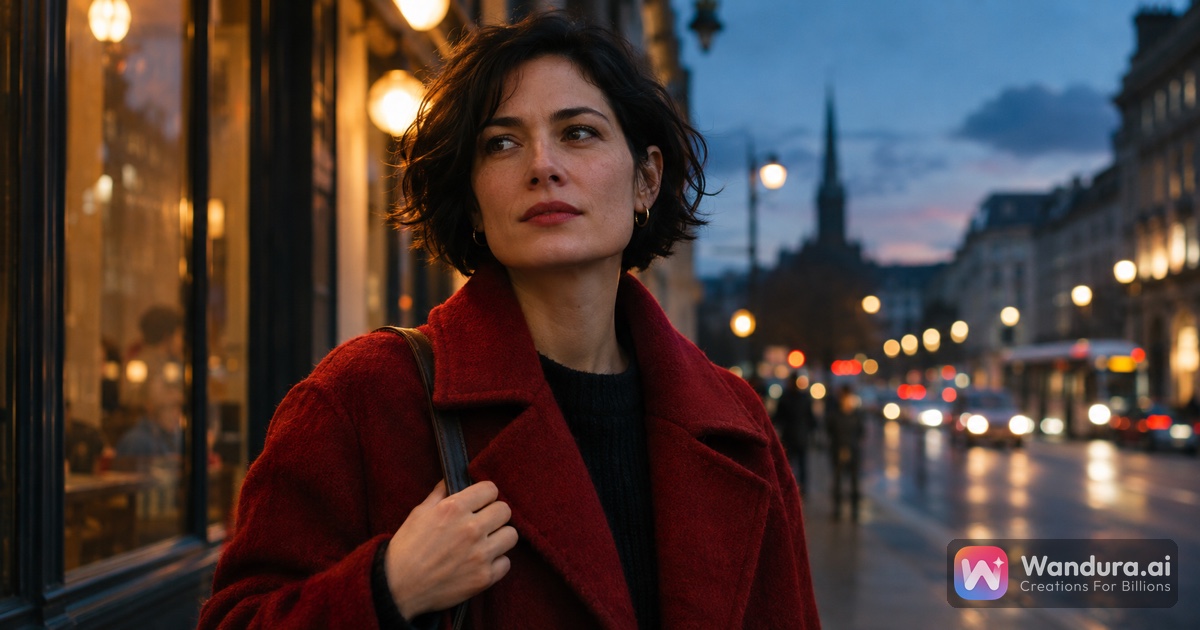
Short answer: To keep a character consistent in AI video, decide the look once, save it as a clear reference image, and give that same reference to every shot instead of describing the character from scratch each time. Keep the words that describe the character identical in every prompt, change only the action, place and camera, and check each new clip against the reference before you move on.
Why characters drift: a text prompt gives the model room to invent. Ask for "a woman in a red coat" five times and you get five different women. A reference image removes most of that room, because the model now has to match a face and an outfit instead of imagining one.
Step 1: Design the character once
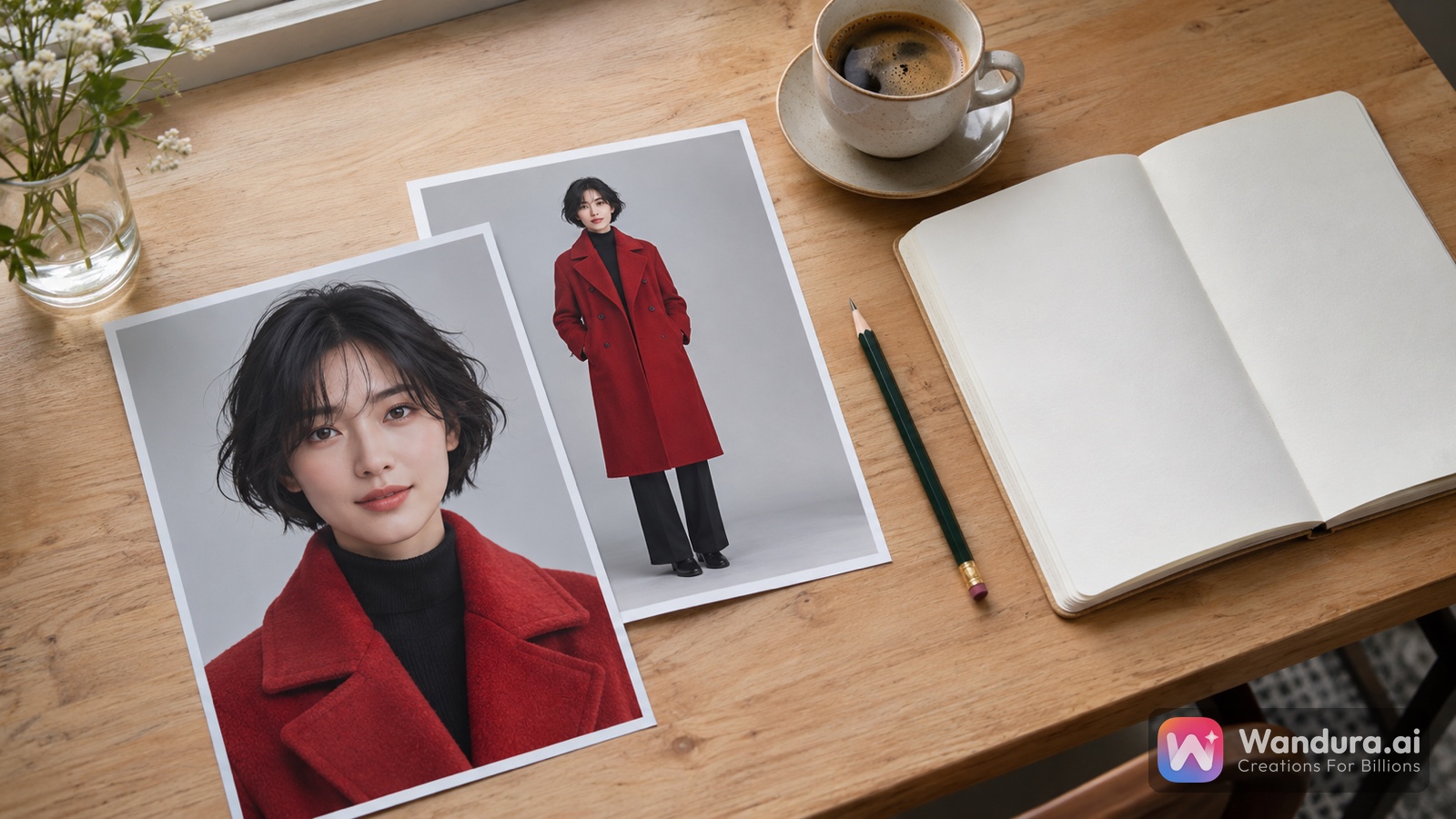
Before any video, make one picture that defines the character. It should show the face clearly and the full outfit, on a plain background, so nothing else competes for attention.
On Wandura AI, the AI Character Generator is built for this. You describe the character in one specific sentence, pick one of five styles (Realistic, Anime, Fantasy, Chibi or Cyberpunk) and get a character sheet with a front view and a full-body view on a clean neutral background. You can generate up to 4 variations per run, keep the one that fits, and it lands in your Creations so you can reuse it later without uploading it again.
Write down the look in a short note as well: age, hair, signature clothing, one detail that makes the character recognisable. You will reuse these exact words in Step 3.
Step 2: Use the same reference for every shot
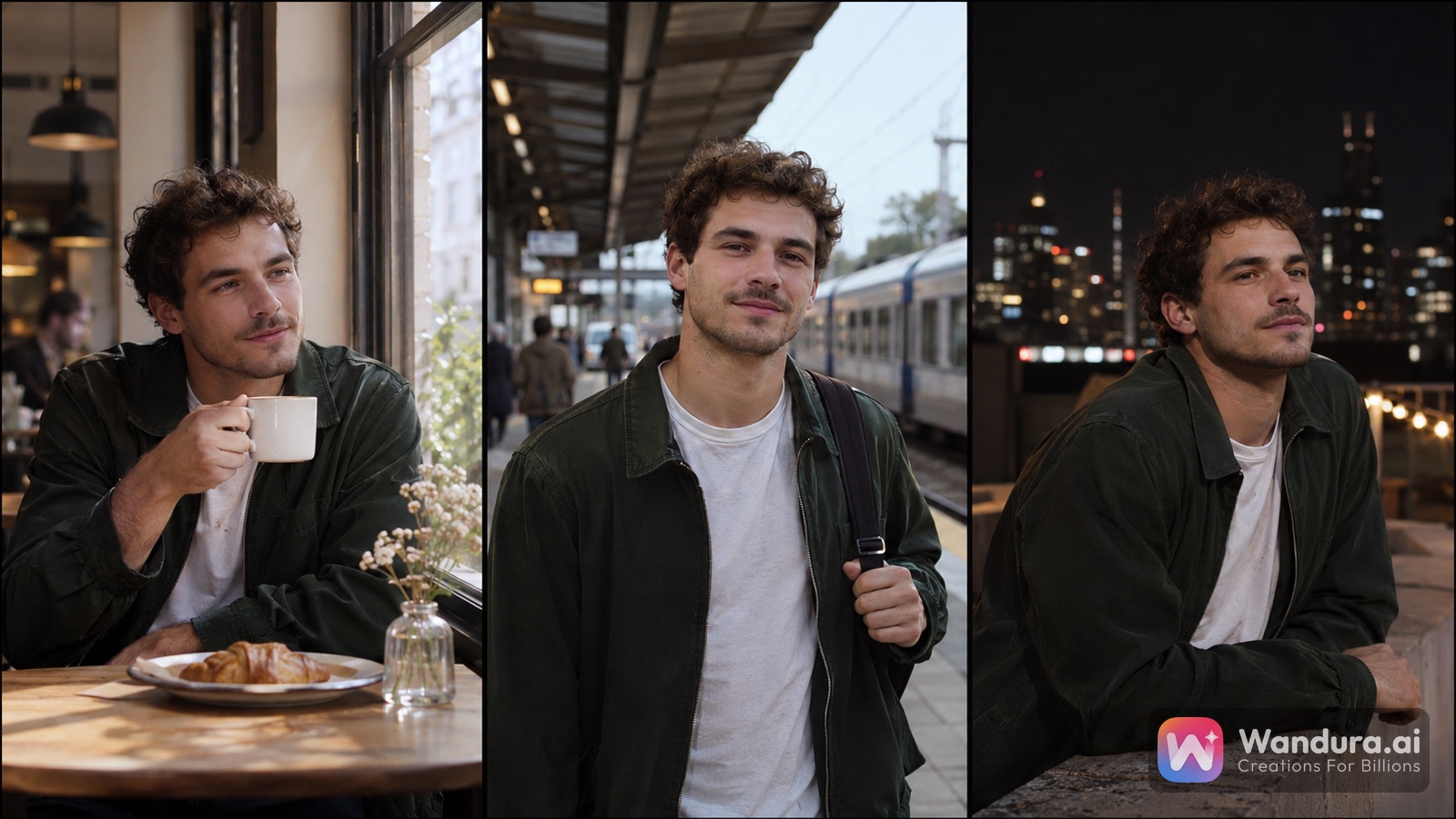
This is the step that does most of the work. Instead of generating each scene from text, start every clip from the same reference.
| What you want to keep | Tool on Wandura AI | What the reference does |
|---|---|---|
| The character's face and outfit in a new scene | Reference to Video, image reference | Guides who or what appears; your prompt describes the action, setting and camera |
| The camera move or visual style of a clip you already have | Reference to Video, video reference (Kling O1) | Guides camera motion and style; your prompt describes the new subject and scene |
| The exact look of one frame, now moving | Image to Video | Keeps the person, product or scene from your picture and adds movement on top |
| Two to four characters together in one frame | AI Multi-Character Generator | Each upload anchors one character, so faces and outfits carry over into the shared scene |
Which reference you can upload depends on the model you pick. Duration, resolution, audio and cost also differ by model and are shown in the composer before you create.
Step 3: Keep the character words fixed in every prompt
When you write prompts for each shot, split them in two parts:
- The character part never changes. Copy the same words from your note in Step 1 into every prompt: "a woman in her thirties, short black hair, red wool coat".
- The shot part changes. Describe only what is new: the action, the place, the light and the camera.
For example: "a woman in her thirties, short black hair, red wool coat, walks into a crowded train station and looks up at the departure board, slow push-in". The next shot keeps the first half and replaces only the part in italics.
Avoid adding new details to the character halfway through, such as a hat or different shoes, unless the story needs it. Every new detail is one more thing the model can change.
Step 4: Prepare references the model can read
A reference can only hold a character if the model can read it. Before you upload, ask three questions:
- Can you see the face? Choose a sharp picture in good light where the character takes up most of the frame and faces the camera. A tiny figure in a wide shot gives the model too little to copy.
- Is there only one move? If you guide a shot with a video, keep it short and steady. A clip full of cuts tells the model several things at once.
- Are you allowed to use it? Use pictures and clips you made or have permission to use, and never copy a real person without their consent.
The reference to video page lists which models take an image and which take a video.
Step 5: Check every clip against the reference
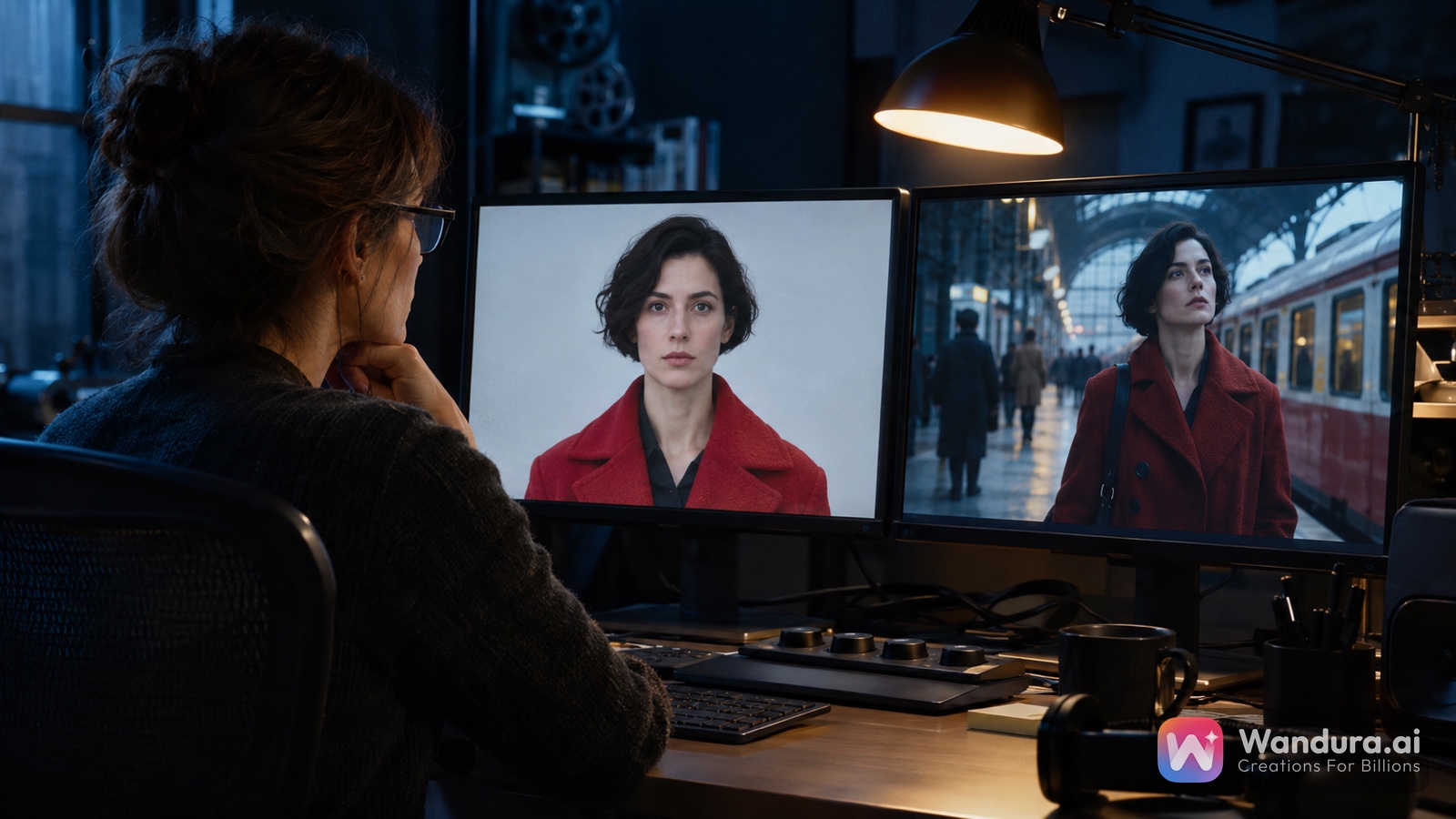
Generate a short clip first, then compare it with the reference before you make the next one. Look at the same things every time:
- face shape, eyes and hair;
- the signature clothing and its colour;
- any detail you wrote in your note, such as a scar, glasses or a plain canvas bag.
If one detail slips, regenerate that shot with the same reference and the same character words rather than adding more description. Small fixes to a working setup are more reliable than rewriting the whole prompt.
Step 6: Join shots without losing the character
To move from one scene to the next without a jump in the character's look, you can use the last frame of one clip as the start frame of the next shot in Start & End Frame Video. The model then builds the in-between shot from two frames you chose, which keeps composition and character under your control at both ends.
For series and short films
If you are making a series rather than a single clip, decide the cast before you generate anything else. Drama Studio turns a script into a vertical 9:16 series with characters, scenes and episodes, and our guide on how to make an AI drama series explains how to lock your cast once and reuse the same faces in every episode.
Making a 30-second film for a challenge? See how to make a 30-second AI horror film for a shot-by-shot plan, then apply the steps above to keep your lead the same from the first shot to the last.
Checklist before you publish
- One reference image defines the character's face and outfit.
- Every shot was made from that reference, not from text alone.
- The character words are identical in every prompt.
- Each clip was checked against the reference for face, hair and clothing.
- Every reference is yours or used with permission.
Frequently Asked Questions
Why does my AI character look different in every clip?
Because each text-only prompt lets the model invent a new person. Give every shot the same reference image and keep the words that describe the character identical, so the model has something fixed to match.
Do I need a reference image to keep a character consistent?
It is the most reliable way. You can make one with the AI Character Generator, which gives you a front view and a full-body view on a neutral background, then use it in Reference to Video.
Can I keep two characters consistent in the same scene?
Yes. In the AI Multi-Character Generator you upload each character separately and describe how they interact. You can then animate the scene with Image to Video.
Which models can use an image reference on Wandura AI?
It depends on the model you pick in Reference to Video. Dreamina Seedance 2.0 (ref) is one of the image-reference models, and Kling O1 uses a video reference. The composer shows what each model accepts and what it costs before you create.
Can I use a photo of a real person as a reference?
Only if it is you or someone who gave you permission. Do not recreate real people without their consent.
Keep reading
How to Make a 30-Second AI Horror Film: Silence, Knock, Choice
How to Make a Reusable AI Template for Photo or Video
Start creating with 70+ AI models
One account, one credit balance, every model. Pay only for what you generate.
See pricing