How to Make an AI Movie Trailer, Shot by Shot
Short answer: To make an AI movie trailer, write it as four beats (a hook, a build, a turn and a title card), turn the hook, the build and the turn into 8 to 12 shots, write one prompt per shot, keep the hero as consistent as you can by reusing the same references, join the shots in order, add one music track and finish with a title card. On Wandura AI, Cinema Studio generates the shots and its film editor joins up to 12 of them into one film of up to 3 minutes, adds a music track and exports it as a single video. The editor does not add titles yet, so you add the title card to that exported video in another video editor.
What a trailer does: a short film tells a story from start to finish. A trailer sells the story: it shows the most striking moments, raises a question and stops before the answer. That is good news for AI video, because you do not need a perfect ninety-minute film. You need a handful of strong shots that cut together well.
Step 1: Write one promise in one sentence
Before any prompt, finish this sentence: "A [who] must [do what], but [what stands in the way]." Everything in the trailer should serve that sentence. If a shot does not, leave it out.
If you already have a story, cut it down to this single line first. If you only have an idea, the sentence is how you find out whether it is strong enough to carry a trailer.
Step 2: Build the trailer from four beats
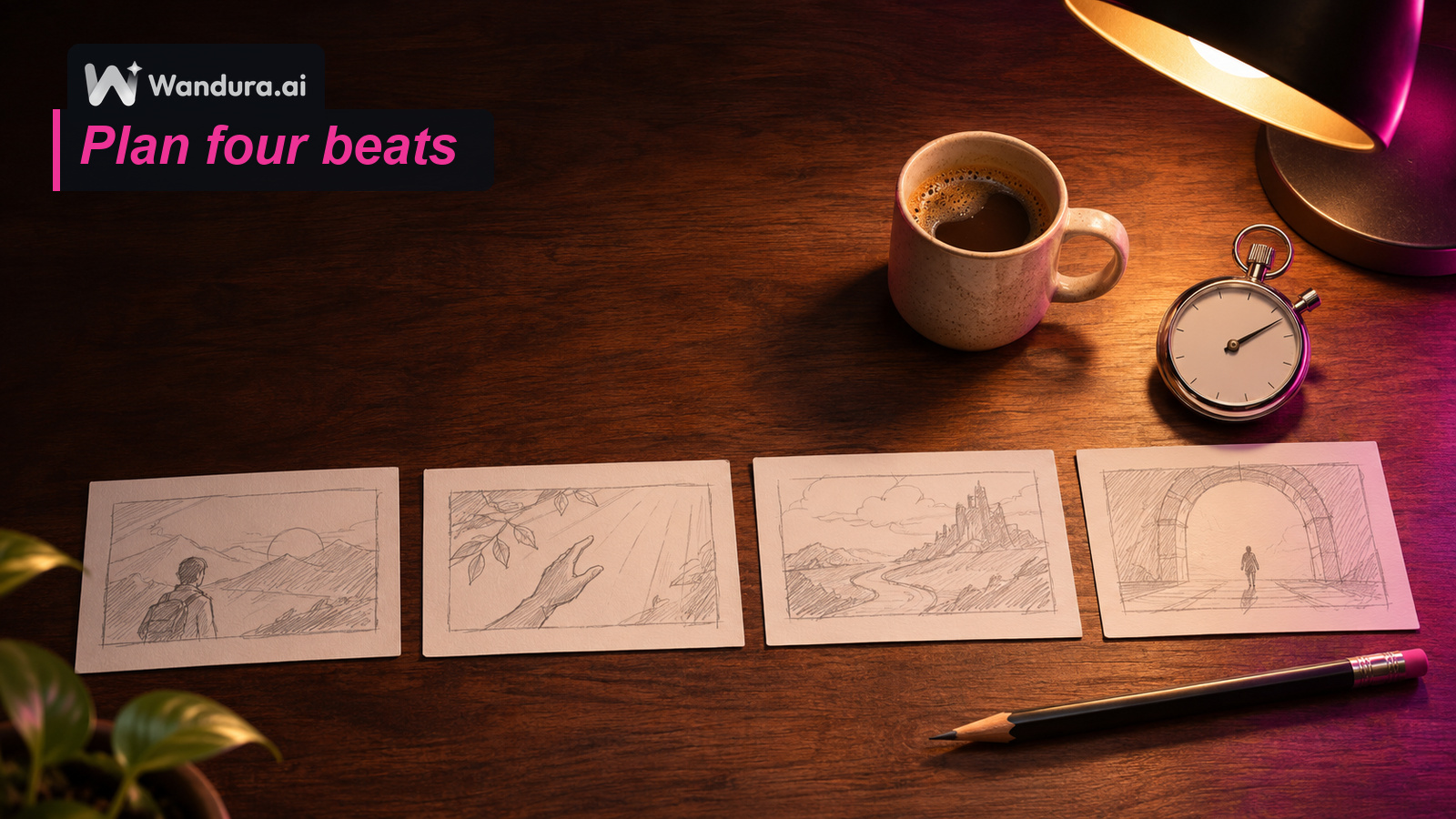
A simple trailer can be built from four beats. Put each one on a card so you can move them around.
| Beat | What it shows | What it does for the viewer |
|---|---|---|
| Hook | Two or three shots: the first striking image and the question behind it | Gives a reason to keep watching |
| Build | Four to six shots where the stakes rise | Shows the world and the hero |
| Turn | Two or three shots: the biggest image or the reversal | Makes the viewer want the answer |
| Title card | One card, made separately in Step 7: the name of the film and one short line | Tells them what to look for |
A useful trick is to decide the turn first, then work backwards to the hook. Once you know the biggest image, the hook only has to point towards it.
Step 3: Turn the beats into a shot list
Now give the hook, the build and the turn their shots: 8 to 12 in total, with the build getting the most. The title card is separate (Step 7). That size also fits the film editor on Wandura AI, which joins up to 12 shots in order into one film. Write each shot as one line: who is in it, where, what happens and what the camera does.
If you have a written script, you do not have to split it by hand. Script to Video AI reads a script, breaks it into episodes and scenes and turns each scene into video in Drama Studio. Storyboard AI draws each scene as a sheet with a frame for every shot, so you can see the trailer as frames before you spend credits on video. If your story is a vertical series, the AI Short Drama Maker does the same for episodes.
Step 4: Write one prompt per shot and keep your hero consistent
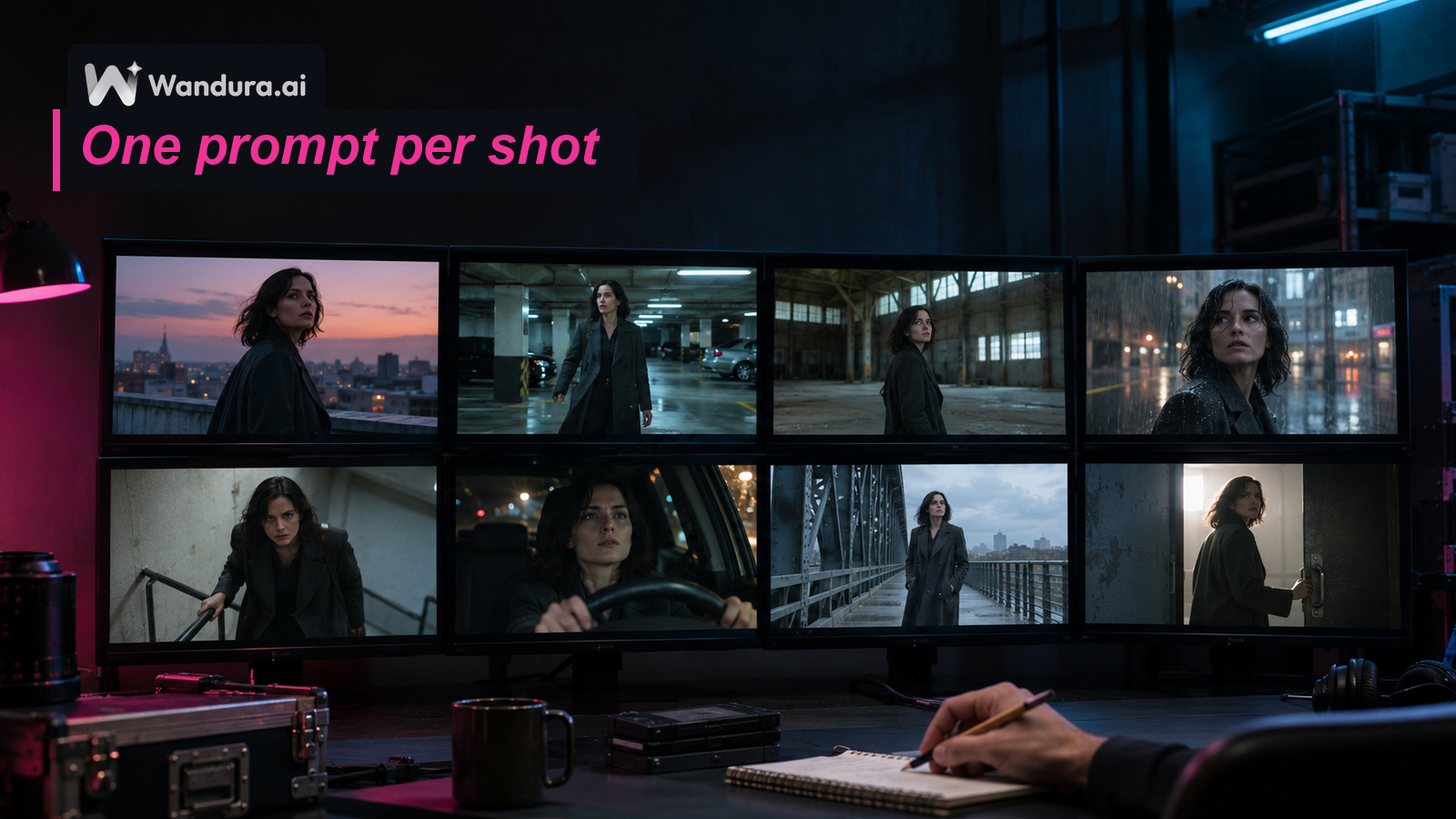
A prompt that tries to describe a whole trailer tends to give you one unfocused clip. Write one prompt per shot instead, and keep each one short: the subject, what it does, where it is and how the camera moves.
The bigger risk is the hero drifting from one shot to the next. AI generations can still drift, so two habits help:
- Reuse the same references. In Cinema Studio you can save characters, backgrounds and props in a project and add them to the shots that need them, so the same faces and places come back. Our guide on keeping a character consistent in AI video walks through the whole method, and Reference to Video guides a clip with a reference image or a reference video, depending on the model: choose a model that takes the kind of reference you have.
- Write the start and end of each shot. Note where the hero is and what they hold at the beginning and the end of a shot, and describe the next shot to match. If you want a shot to travel between two exact images, Start & End Frame to Video lets you choose the first frame and the last frame.
If the hero needs a clean starting look, make a character sheet first with the AI Character Generator.
Step 5: Generate the shots and judge them at the cut
Pick the aspect ratio before you generate the first shot, so every clip has the same frame: vertical for feeds, wide for YouTube. The options depend on the model. In the Cinema Studio composer you also choose the resolution, the duration and how many versions to generate per run, and the credit cost is shown before you generate.
Keep the version that matches your shot list, then check it against its neighbours. Play two shots back to back. A change in outfit, prop or eyeline is much easier to see at the cut than in a single clip. If a shot drifts, regenerate it with the same references instead of rewriting the whole prompt.
Treat the result as concept material. Wandura AI lists concept films and pitches among the uses of Cinema Studio: moving previews of a story world before a full production. A concept trailer fits that use, and the next steps add the music and the title.
Step 6: Add music before you judge the pace
In most trailers the music sets the rhythm, so it helps to choose it before you fine-tune the cuts. The film editor on Wandura AI adds a music track to the film. The AI Music Generator can compose an original track from a short description; it has a Cinematic genre and an instrumental toggle, so the music sits under the images, and the price is shown next to each model before you generate. Check the tool page for the plan it needs. Describe the mood and the build, for example "slow low strings that rise to a hard hit at the turn", then try to land your biggest shot on the hit. Add the track in the film editor when you join the shots, or in the video editor where you add the title card in Step 7.
Use only music you have the rights to use.
Step 7: Finish with a title card
The film editor on Wandura AI does not add titles or on-screen text yet, so build the title card another way:
- Make the card as an image with Text to Image with Text. It has a field for the exact words, and it uses models such as GPT Image 2 and Ideogram V4 so the title comes out readable.
- If you want the card to move, turn it into a short clip with Image to Video; otherwise keep it as a still.
- Export your film from the film editor as one video, open it in a video editor of your choice, and add the card as the last shot, or add the title text there directly.
Keep the card simple: the name of the film and one short line.
Checklist before you publish
- The trailer fits one sentence: who, what they want, what stands in the way.
- It has a hook, a build, a turn and a title card.
- Every shot has its own short prompt and the same hero references.
- Every shot was checked against its neighbours at the cut.
- The aspect ratio is the same in every clip.
- The music and every reference are yours or used with permission.
- The title card is readable and ends the trailer.
For more shot-by-shot plans, see how to make a 30-second AI action film, a 30-second AI horror film, an AI drama series and a cinematic AI ad, or read the full guide to making a short film with AI.
Frequently Asked Questions
How many shots does an AI movie trailer need?
Plan 8 to 12 for the hook, the build and the turn, and make the title card separately. On Wandura AI the film editor joins up to 12 shots in order into one film of up to 3 minutes, so a shot list of that size fits one film. Write the list first, then generate.
Can I add a title to my trailer on Wandura AI?
The film editor does not add titles or on-screen text yet. Make a title card as an image with Text to Image with Text, turn it into a short clip with Image to Video if you like, export your film as one video, and add the card or the title text in another video editor.
Can I make a trailer for a story I have not made yet?
Yes. A concept trailer is a moving preview of a story world, and Wandura AI lists concept films and pitches among the uses of Cinema Studio. Treat the shots as concept material: the trailer adds music and a title card, and the full film comes later.
What music can I use for an AI trailer?
The film editor adds a music track to your film. You can compose an original track with the AI Music Generator, which has a Cinematic genre and an instrumental toggle, and add it in the film editor, or in the other video editor where you add the title card. Use only music you have the rights to use.
Does my hero have to look the same in every shot?
For a trailer, it helps a lot: the viewer should recognise the hero at every cut. Reuse the same references in every shot and keep the words that describe the character identical, and check each clip, because AI generations can still drift. Our guide to keeping a character consistent in AI video explains the method.
Keep reading
How to Make a Christmas Video With AI From a Photo
How to Keep a Character Consistent in AI Video, Shot by Shot
Start creating with 70+ AI models
One account, one credit balance, every model. Pay only for what you generate.
See pricing