AI Drama Series: How to Make One, Episode by Episode

Short answer: To make an AI drama series, write the story as episodes first, lock your characters so they look the same every time, storyboard each scene, and only then turn frames into video. In Wandura, Drama Studio runs that path for you: paste or upload a script, and it splits the story into episodes, characters and scenes.
The one rule that saves the most time: decide the ending of episode 1 before you make a single frame.
 Poster for The Wrong Daughter, one of the sample stories in Drama Studio.
An AI drama series is a story told in short episodes, each one built from scenes and shots that an AI model turns into video. The hard part is not making one good clip. It is making twenty clips feel like the same show: same faces, same places, same pace, and a reason to press "next episode". If you are making a single short film rather than a series, see our AI filmmaking guide.
This guide walks through the steps in the order that works, whether you use Wandura or plan on paper first.
1. Pick a story that fits short episodes
Series that work in short vertical episodes share a few traits:
- One clear promise. A wronged heir, a secret marriage, a ninety-day deadline. If you cannot say it in one sentence, the audience will not get it in ten seconds.
- A small cast. Three to five named characters is plenty. Every extra face is one more look to keep consistent.
- Conflict from the first scene. Short-form drama does not warm up. Start in the middle of the problem.
- A turn at the end of every episode. A reveal, a threat, a choice. This is what makes people continue.
If you want to see what that looks like, Drama Studio lists sample stories such as The Wrong Daughter, Beneficiary and Ninety Days. You can read how each one is set up and start from one instead of a blank page.
2. Break the story into episodes
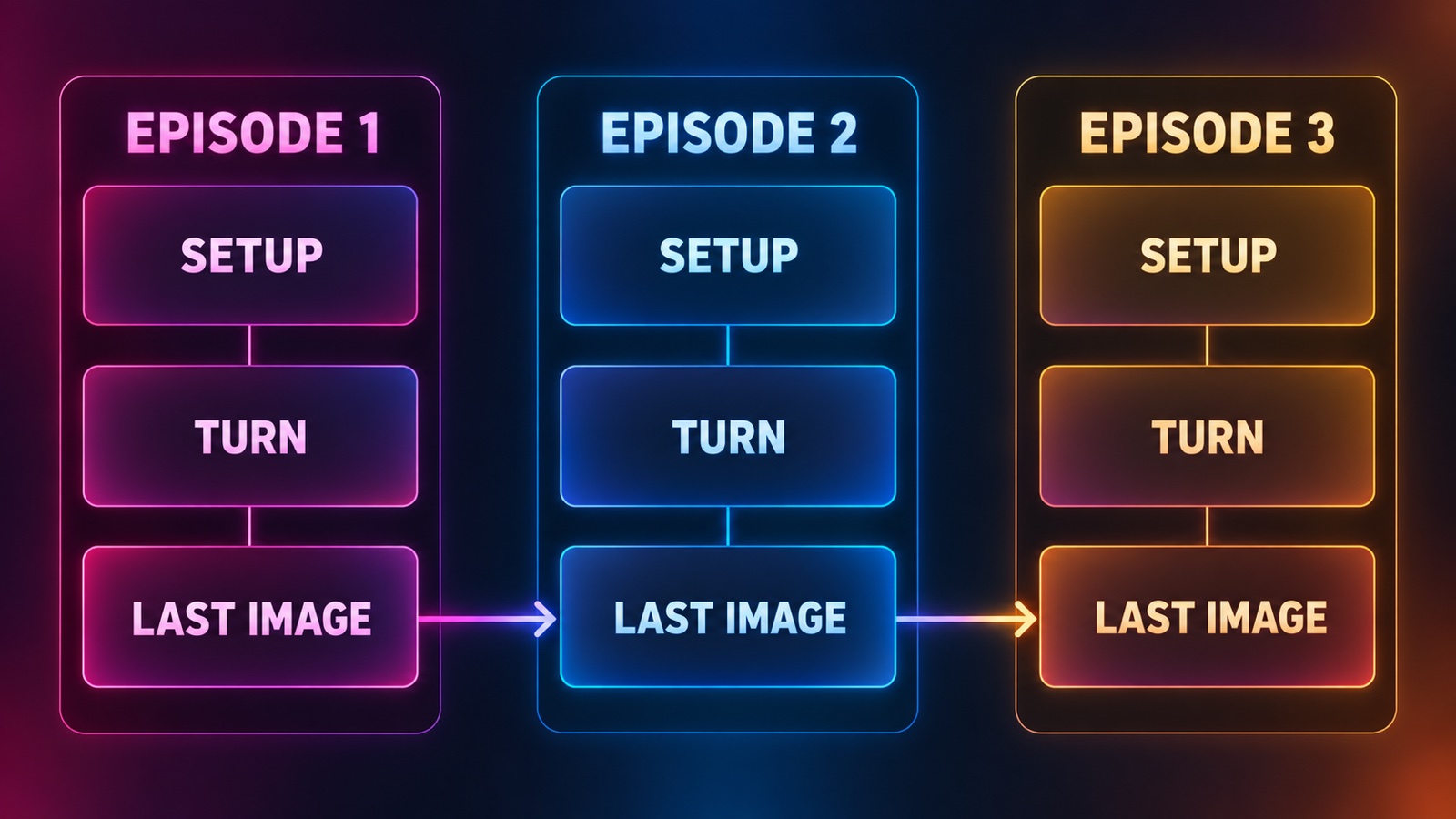 Episode plan grid: setup, turn and last image for three episodes, with the last image leading into the next.
Before you write dialogue, write a one-line plan for each episode:
| Episode | Setup | Turn | Last image |
|---|---|---|---|
| 1 | Who wants what | First reversal | The question left open |
| 2 | Cost of the reversal | New information | A face that changes everything |
| 3 | The plan | The plan breaks | A decision |
Keep the "Last image" column honest. It is the frame the audience carries into the next episode, and later it becomes the first frame of the next one.
3. Write the script scene by scene
A script for AI video does not need to be long. It needs to be clear about three things in every scene:
- Where we are (one place, one time of day).
- Who is there (names, so the same character is reused).
- What changes (one beat that moves the story).
Write action and dialogue as plain lines. Avoid camera jargon in the script itself. Shot choices come later, at the storyboard step.
Drama Studio accepts a script you paste, write in the app, or upload as a PDF, DOCX or TXT file. You can choose to make a single episode or a full series, so you can test the first episode before committing to ten.
4. Lock your cast once
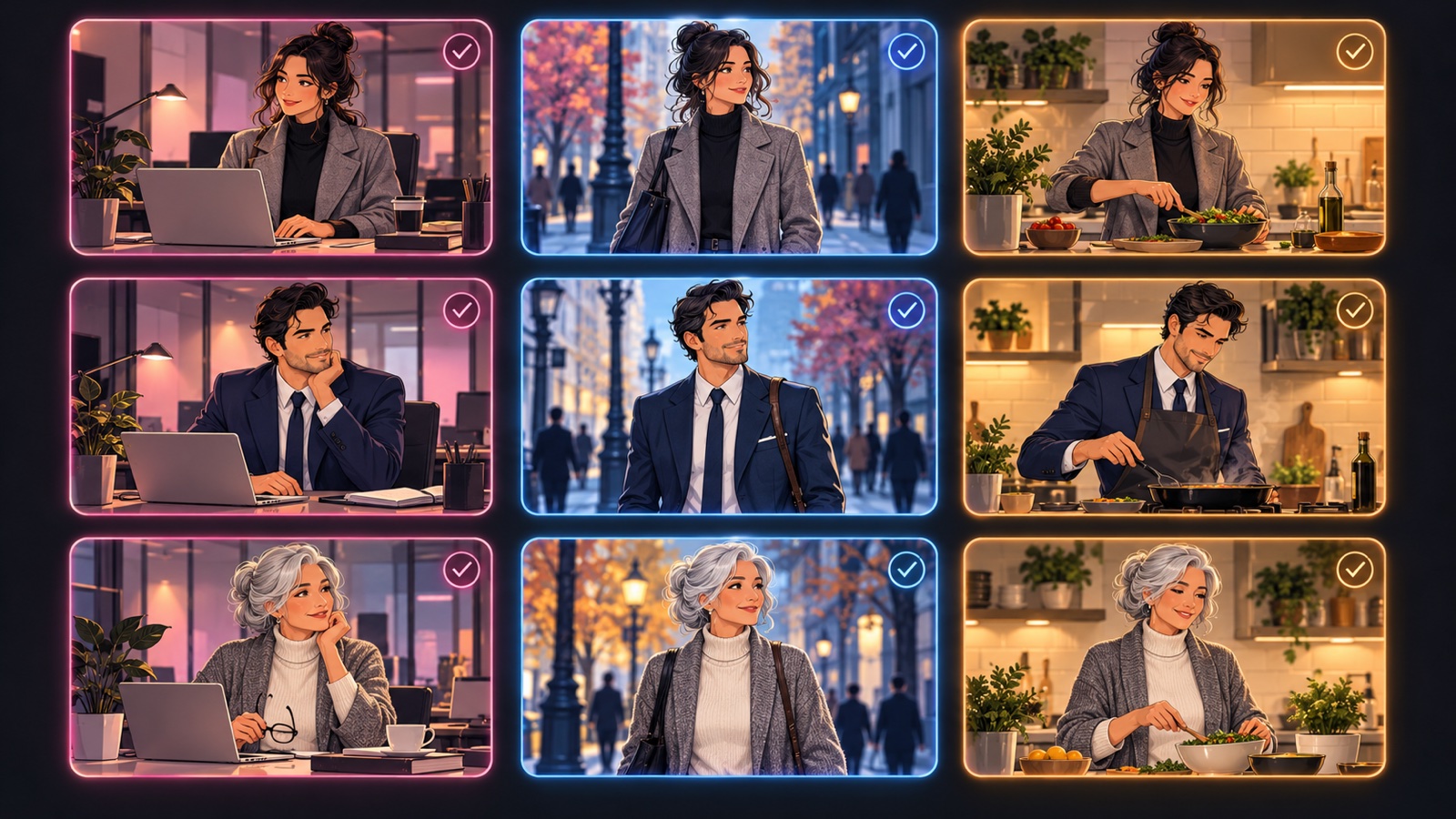 The same three illustrated characters keeping the same look across different scenes.
This is where most AI series fall apart. If a character's hair, face or outfit shifts between scenes, viewers notice immediately.
The fix is to define each main character's look once and reuse it everywhere. In Drama Studio this is the "Build your cast" step: you set a look for each character, and the same faces are used in every episode. Do this before you generate anything else, and keep a short note of each character's main look (age, hair, signature clothing) so you can check results against it.
5. Storyboard before you make video
A storyboard shows each shot as a still frame before it becomes video. It is the cheapest place to catch problems: a wrong location, a missing character, a scene that runs too long.
In Drama Studio, each scene can be drawn as storyboard frames with your locked characters, so you can fix a scene before turning it into video. If you want more detail on this step, see our storyboard AI generator page. To plan the frames shot by shot, see how to storyboard each episode with AI.
What to check on every storyboard:
- Does each frame show who is speaking or reacting?
- Is there a shot that tells the audience where we are?
- Does the last frame of the scene set up the first frame of the next?
6. Connect scenes with first and last frames
Shots in a series should flow. Drama Studio lets you pick a first and last frame for a scene, so the end of one shot carries into the next. Use this for moments where continuity matters: a door that opens, a hand that reaches, a look that lands.
7. Make each episode as video
Once the storyboard looks right, turn each scene into video. Drama Studio makes 9:16 video by default, with 16:9, 21:9 and three other formats available if your series needs them.
Two practical habits help:
- Make episode 1 completely before you start episode 2. You will learn what your cast and style need to look like, and you can adjust before you have twenty scenes to redo.
- Check the cost before you create. Drama Studio shows the credit cost before each creation, so you decide whether to go ahead. If you want to compare approaches, our script to video AI page explains how a whole script differs from a single text prompt.
You can also close the tab while the script breakdown runs: Drama Studio keeps working on its servers.
8. Write the ending of every episode like a trailer
The last 5 seconds decide whether the next episode gets watched. Good endings in AI drama tend to be:
- A reveal: someone sees something they should not have.
- A threat: a deadline or a name said out loud.
- A choice: the character has to pick, and the episode ends before they do.
Write the ending first, then work backwards. For a 90-second plan, see how to plan a 90-second AI drama episode.
9. Review as a viewer, not as the maker
Watch the full episode on a phone with the sound on. Then ask:
- Did the first 3 seconds show conflict?
- Could someone who has not seen episode 1 follow it?
- Do the characters look like the same people from start to finish?
Fix the weakest scene, not the whole episode.
How to do this in Wandura
- Open Drama Studio.
- Upload your script, write it in the app, or use a sample story.
- Choose Single episode or Series.
- Let Drama Studio break the script into episodes, characters and scenes.
- Build your cast, then storyboard each scene.
- Turn the scenes into 9:16 video and review the result.
For tool details, see the AI short drama maker page. New accounts get free credits, and the first result carries a wandura.ai watermark.
Frequently Asked Questions
How do I make an AI drama series?
Start with the story, not the tool. Break it into episodes, write each scene with a place, the people in it and one change, lock your characters' looks, storyboard each scene, then make video one episode at a time. In Wandura, Drama Studio follows this path from a script you paste, write or upload.
How long should an AI drama episode be?
Short enough that the story turns once and ends on a hook. Use the length that fits one clear turn.
How many characters should an AI drama series have?
As few as the story allows. Three to five named characters is plenty, because every extra face is another look to keep consistent across scenes and episodes.
How many episodes should I plan before I start?
Plan the first episode in full, and sketch the others in one line each. If episode 1 ends on a turn that makes you want to write episode 2, the series has something to build on.
What makes people keep watching a short series?
A clear promise in the first scene and a turn at the end of every episode: a reveal, a threat or a choice left open.
Where should I start if I have only an idea?
Write the idea as one sentence about what the main character wants and what stands in the way, then break it into one line per episode. The script comes after that plan, not before it.
Keep reading

How to Keep a Character Consistent in AI Video, Shot by Shot

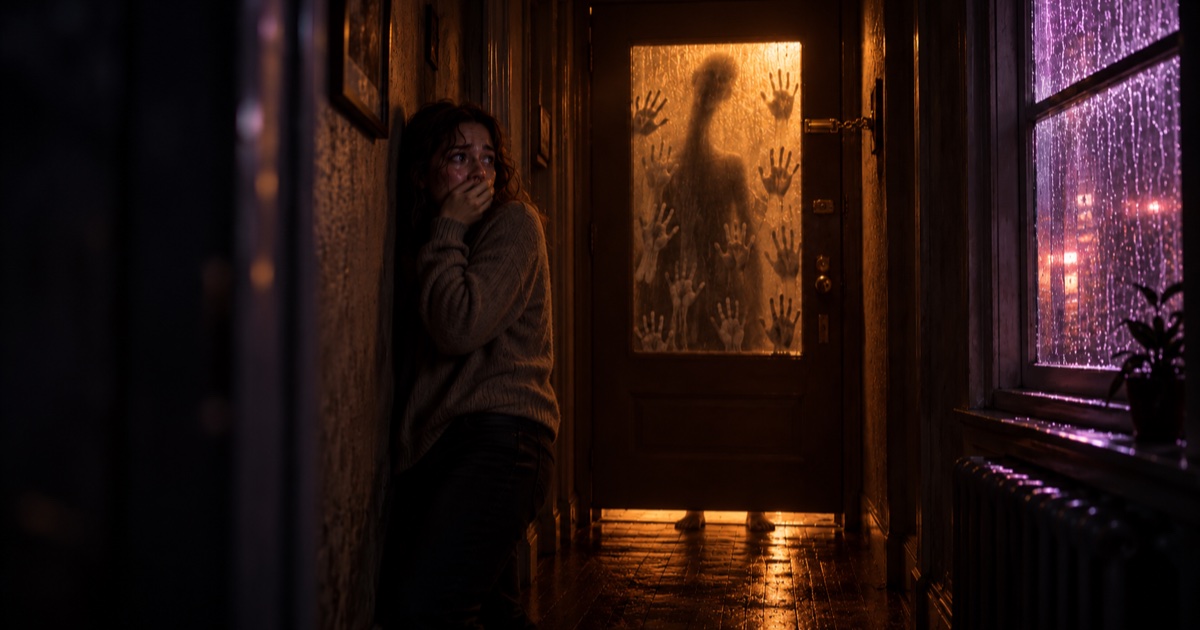
How to Make a 30-Second AI Horror Film: Silence, Knock, Choice
Start creating with 70+ AI models
One account, one credit balance, every model. Pay only for what you generate.
See pricing