How to Upscale a Video From 720p to 1080p With AI
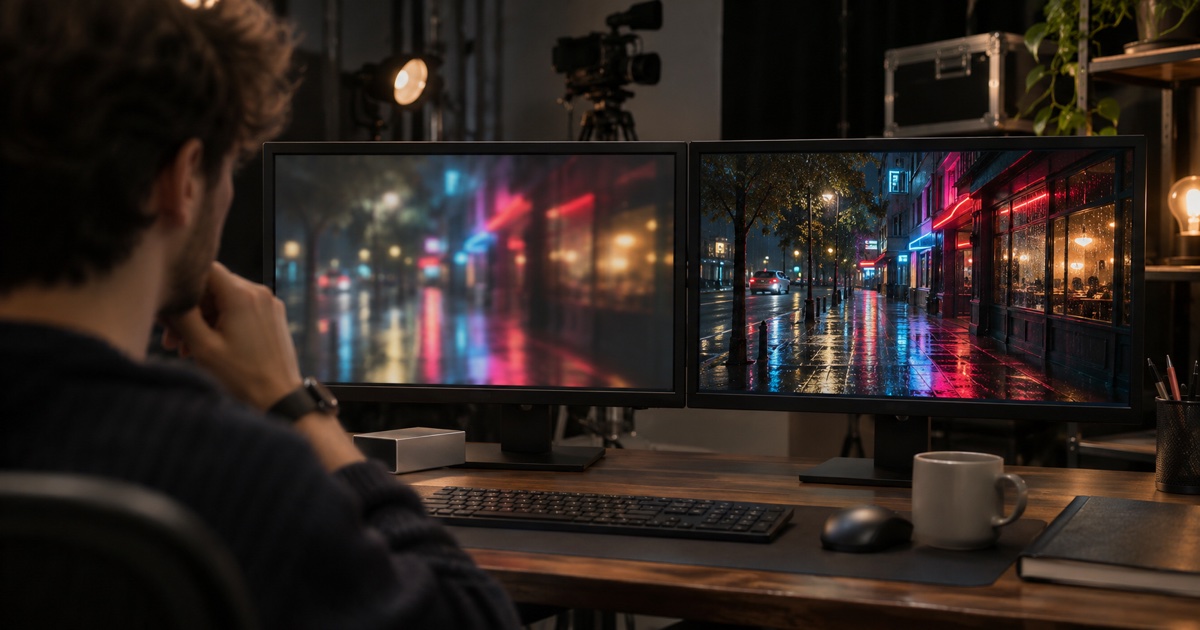
Short answer: To upscale a video from 720p to 1080p with AI, upload the clip to an AI video upscaler, pick a model and a target resolution, then generate and compare the result with the original at full size. AI upscaling re-renders every frame at the higher resolution and rebuilds detail, so edges, faces and textures come out sharper instead of stretched. If the clip is also grainy or heavily compressed, clean it up first, then upscale.
The test: watch the upscaled clip full screen next to the original. If faces and edges look sharper but the motion, timing and audio are unchanged, the upscale did its job.
Upscaling is about delivering the clip you already have at a higher resolution.
Many AI video models output 720p or 1080p, phone footage from a few years ago is often smaller, and messaging apps compress video hard. Ad platforms and TVs increasingly expect 1080p or more. An AI video upscaler closes that gap without a re-shoot or a re-render.
What AI upscaling does and does not do
An ordinary resize stretches the existing pixels, which makes a 720p clip bigger but blurrier. An AI upscaler re-renders each frame at the new resolution and reconstructs detail, so the result looks sharper rather than just larger.
What stays the same: the motion, the timing and the audio. The model only rebuilds detail inside each frame, so the upscaled clip is the same video, just sharper.
What it cannot do: invent content that is not there, fix a wrong face from an earlier step, or bring a badly out-of-focus clip back. Treat upscaling as the last finishing step, not a repair tool.
Upscale or enhance first?
These are two different problems:
| The problem | Use | Why |
|---|---|---|
| The clip is too small for where it will run | Video Upscaler | It adds resolution |
| The clip is the right size but grainy, noisy or soft | Video Enhancer | It cleans up quality at the current size |
| The clip is small and noisy | Enhance first, then upscale | Upscaling noise makes the noise bigger |
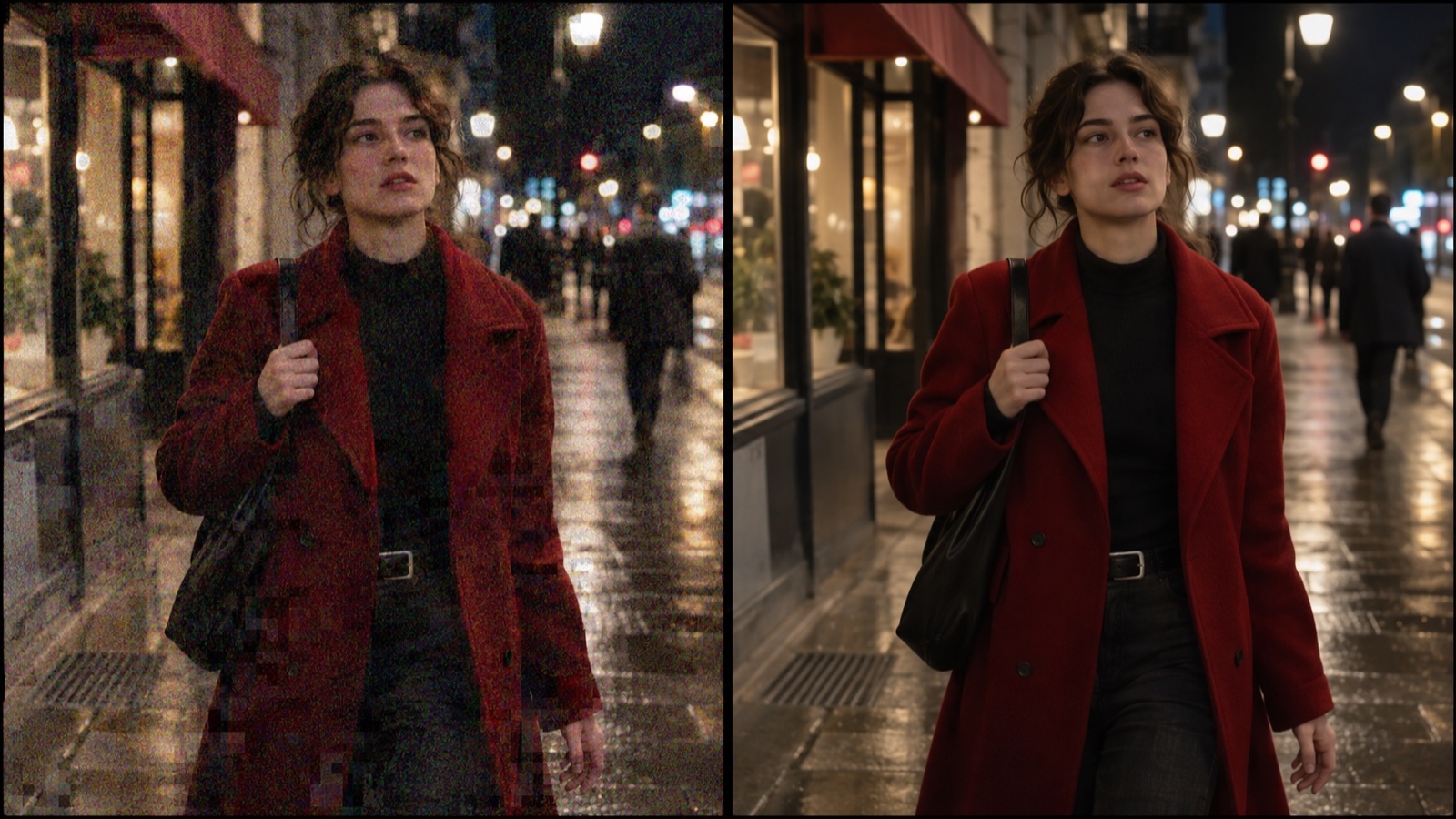 Grain and compression noise are an enhancement problem; size is an upscaling problem.
Pick a model and a target resolution
On Wandura AI, the Video Upscaler offers three models. Each one reaches different target resolutions:
| Model | Target resolutions | Good for |
|---|---|---|
| SeedVR2 | 720p or 1080p | Faces and detail-critical footage; the detail-preserving default |
| BytePlus vCube | 720p, 1080p or 2K | The low-cost option, and the one that reaches 2K |
| ByteDance Upscaler | 1080p or 4K | Faster everyday jobs; accepts source clips up to 1080p on the longest edge |
A simple way to choose:
- 720p to 1080p with faces in shot: SeedVR2.
- A 2K master for delivery: BytePlus vCube.
- 4K, or a quick everyday upscale: ByteDance Upscaler.
The price depends on the model, the target resolution and the length of the clip. The composer shows the exact price before you create, so you can compare options on your own clip.
Step by step
- Upload the clip. An AI generation, a phone clip or older compressed footage all work.
- Pick the model, then the target resolution. The composer only shows the resolutions the selected model supports.
- Generate. The job runs in the cloud; the sharper version lands in your Creations when it is ready. Longer clips and higher targets take longer.
- Compare at full size. Play the original and the upscaled clip side by side on a large screen.
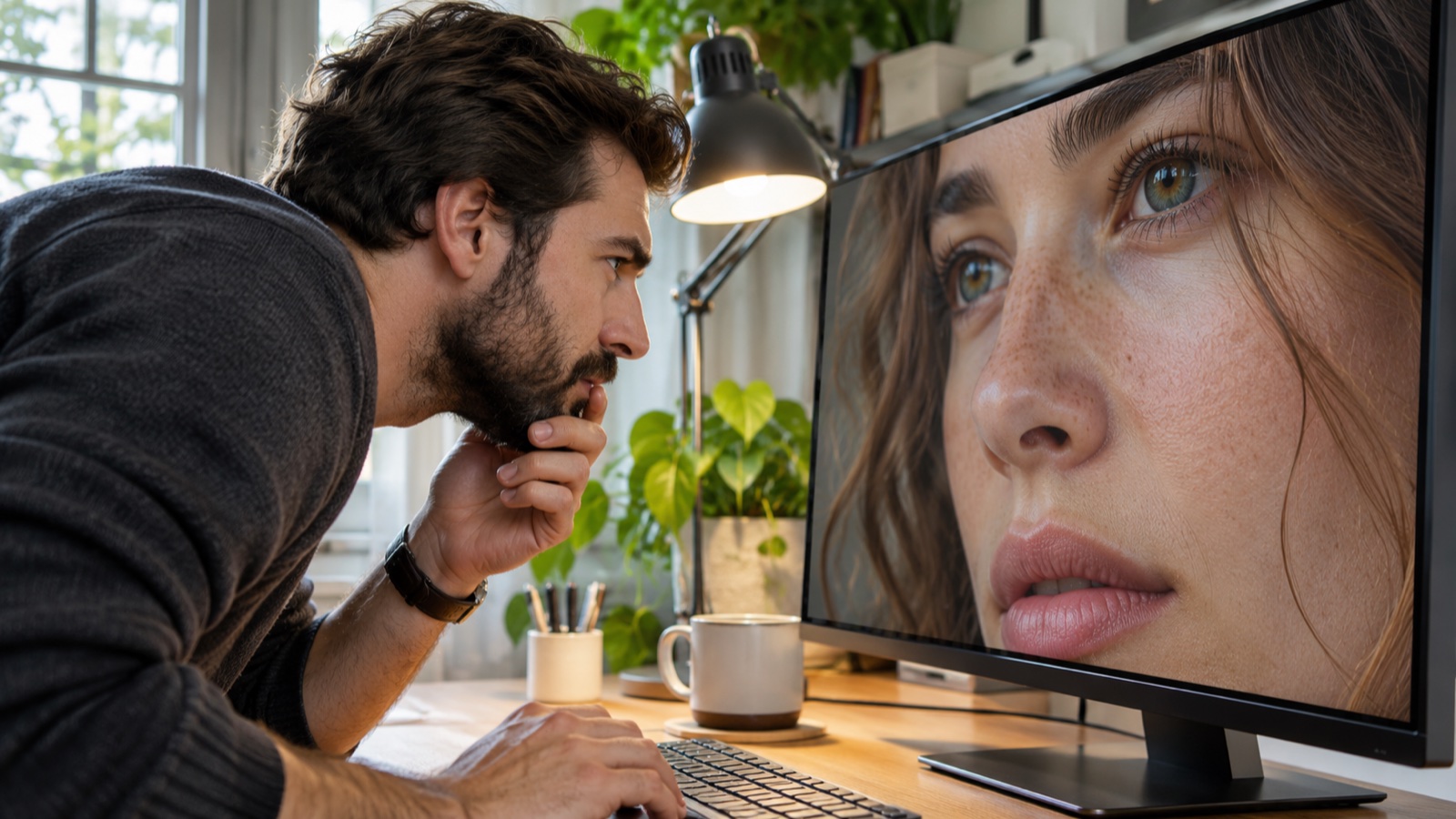 Judge an upscale at full size, on the screen size your audience will use.
Three workflows where upscaling pays off
Test at 720p, publish at 1080p. While you are still trying prompts and models, there is no reason to pay for full resolution. Keep drafts small, pick the one clip you will publish, and upscale only that. On Wandura AI a finished Creation can go to the upscaler from the chain bar, so there is no export step in between.
Upscale before you reframe. A 9:16 crop of a wide 1920 x 1080 shot keeps only about a third of the width, so the vertical version has far fewer pixels than a native 1080 x 1920 frame. Upscaling the wide shot to 4K first leaves enough pixels for a full 1080 x 1920 vertical crop; 2K narrows the gap but does not close it.
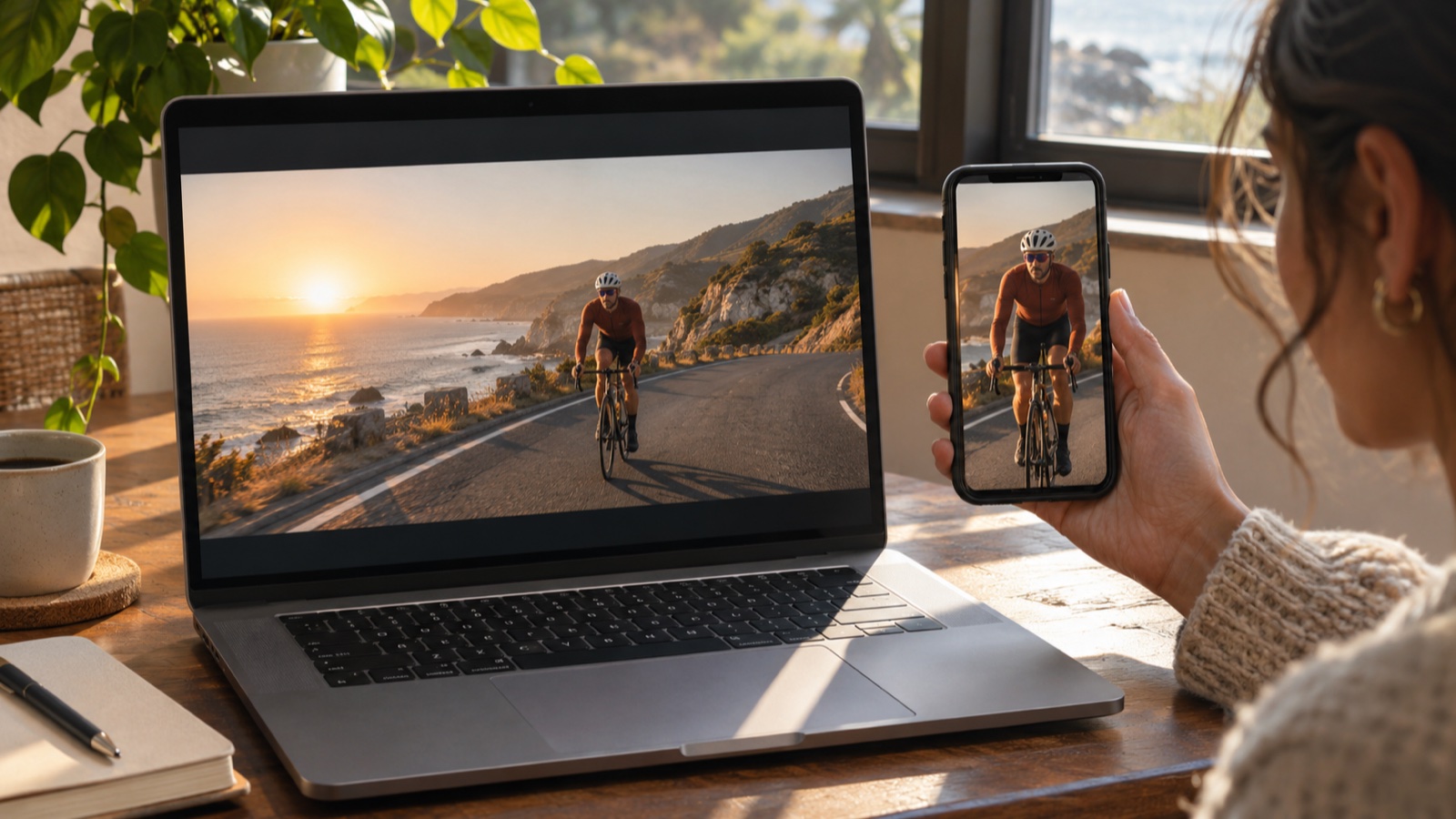 Cropping a wide shot to vertical keeps only part of the frame, so upscale first.
Finish a 720p tool output. Face Swap Video outputs 720p, for example. Get the swap right first, then upscale the finished clip for delivery.
If the clip is going into an ad, check the platform's current upload specs before you pick a target. Our TikTok ad specs guide covers that platform.
What to check in the result
| Look at | Good sign | Warning sign |
|---|---|---|
| Faces | Eyes, teeth and hair edges look natural | Waxy skin or over-sharpened eyes |
| Text and logos | Letters are cleaner | Letters change shape |
| Fine texture | Fabric and foliage look detailed | Texture looks painted or repeated |
| Motion | Same as the original | New flicker between frames |
For faces and detail-critical footage, start with SeedVR2, the detail-preserving option. If the source was noisy, run Video Enhancer first and upscale the cleaned clip.
The short version: fix noise first, pick the model by the resolution you need, and judge the result at full size before you publish.
Frequently Asked Questions
Is 720p to 1080p a big enough jump to notice?
On a phone, often less than you expect; on a laptop, TV or projector, usually yes. Judge it on the screen your audience will use.
Should I upscale every draft?
No. Upscale only the clip you are going to publish. Drafts are for choosing.
Can I upscale a clip that is already 1080p?
Yes, to 2K or 4K, depending on the model. Check that the model accepts your source size before you start.
What if the upscaled faces look worse?
Go back to the source. If it is noisy, clean it with Video Enhancer first; if it is out of focus, re-generate or re-shoot rather than upscale.
Keep reading
How to Keep a Character Consistent in AI Video, Shot by Shot
How to Make a 30-Second AI Horror Film: Silence, Knock, Choice
How to Make a Reusable AI Template for Photo or Video
Start creating with 70+ AI models
One account, one credit balance, every model. Pay only for what you generate.
See pricing