How to Turn a Script Into a Video With AI
Short answer: To turn a script into a video with AI, get the script into clear scenes, lock your characters, check each scene as a storyboard frame, and then make each scene as video. In Wandura, Drama Studio does this for you: paste or upload the script, review the storyboard frames, then turn each scene into video.
The part most people skip: preparing the script. A script that is clear about who, where and what changes gives you a better first result than any clever setting.
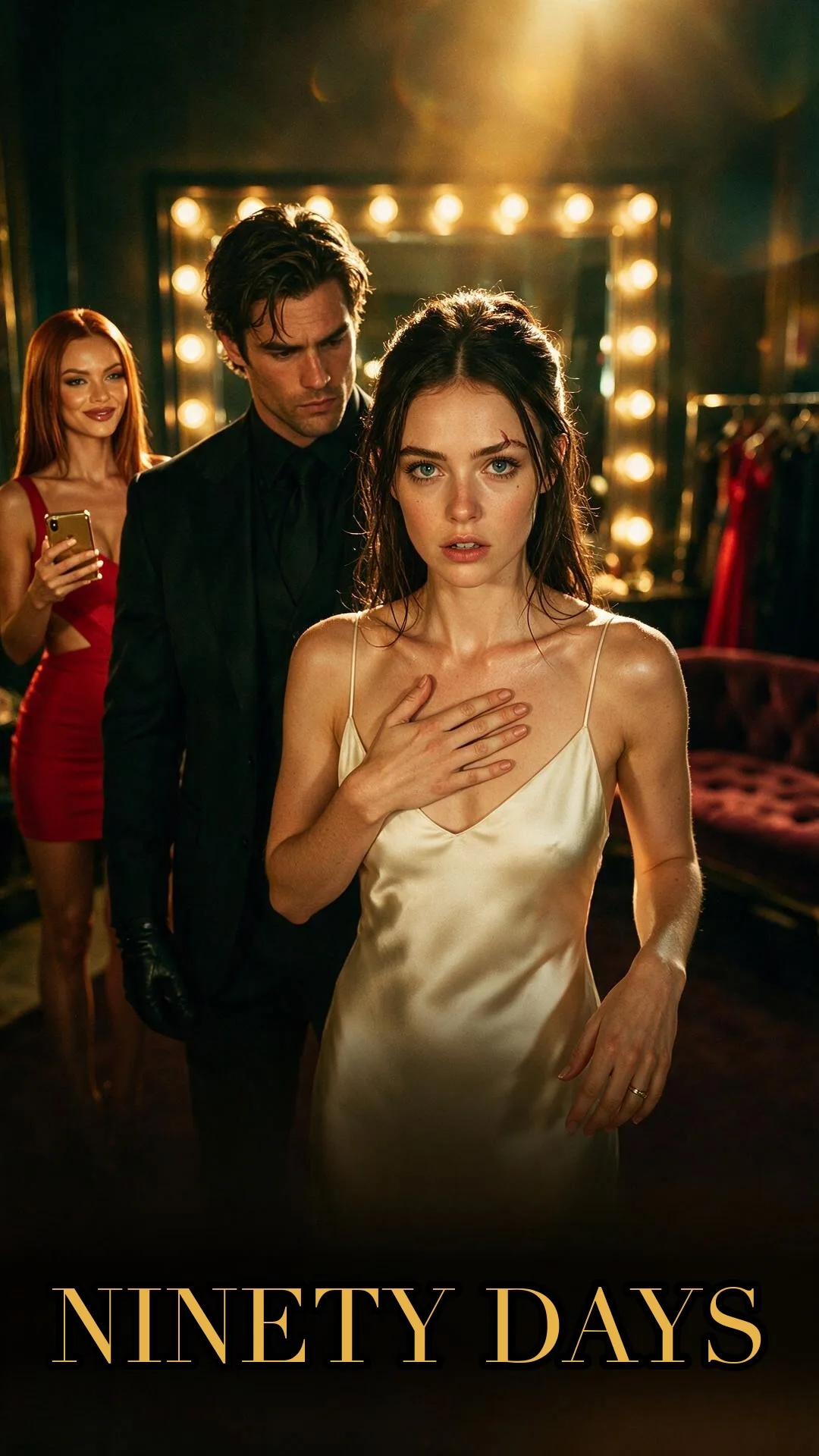 Poster for Ninety Days, one of the sample stories in Drama Studio.
Turning a script into video used to mean a crew, a camera and a schedule. With AI, you can see your script as moving scenes much sooner. But the process still works the same way: a good script, clear decisions about each scene, and a review before you commit.
There are two ways to get video from text with AI. One is to write a prompt for a single clip. The other is to start from a whole script and let a tool split it into scenes. This guide is about the second one, because it is what you need when the story has more than one scene and the same characters have to appear in all of them. For the full filmmaking process, from story idea to finished cut, see how to make a short film with AI.
Script to video vs. a single prompt
A single prompt makes one clip. That is great for a quick idea, a mood or an effect. It is not great for a story, because each clip is generated on its own, and nothing connects clip 4 to clip 1.
Working from a script is different. The tool reads the whole script, works out the scenes, and can keep the same characters across them. On Wandura, our text to video tool makes one clip from one prompt, while script to video works from a whole script and keeps the same characters across many scenes.
A simple rule: if you can say what you want in one sentence and one clip, use a prompt. If you need more than one scene, start from a script.
1. Write (or finish) a script that is easy to split
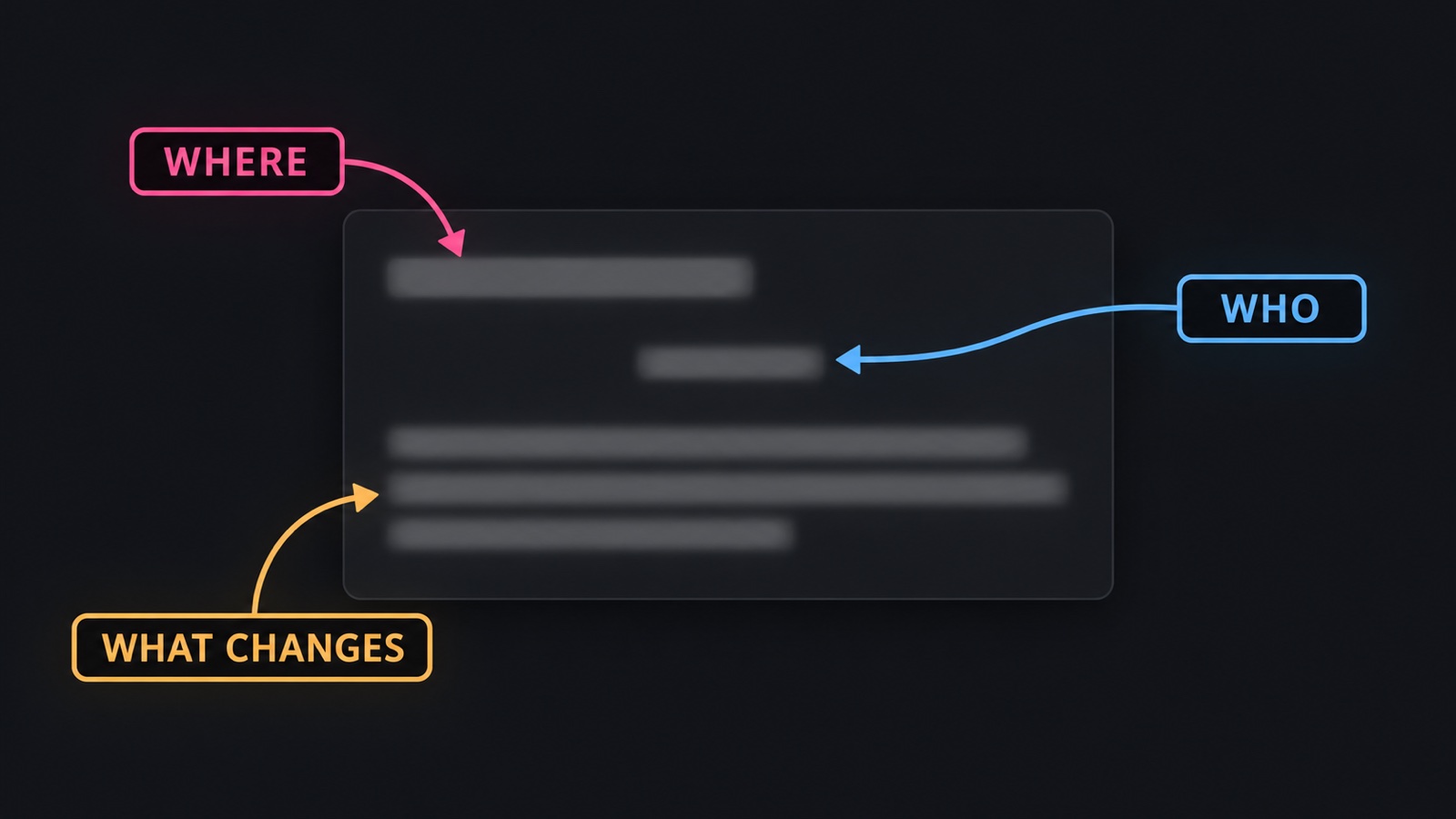 A screenplay excerpt with where, who and what changes highlighted.
A script that converts well into scenes is simple in structure. For each scene, make sure you can answer:
- Where? One place, one time of day.
- Who? Use each character's name the same way every time.
- What changes? The scene should end somewhere different from where it started.
Good habits for the page itself:
- Slug lines help. A line like "INT. KITCHEN, NIGHT" gives the scene a clear start. If you do not use film format, a plain line saying where and when works too.
- Write what we can see and hear. "She hesitates" is hard to show. "She takes a step towards the door, then stops" is easy.
- Keep dialogue short. Short lines are easier to follow in a short scene.
- One scene, one idea. If a scene has two turns, consider splitting it.
2. Get the script into the tool
In Wandura, you start from Drama Studio. You can paste the script, write it in the app, or upload it as a PDF, DOCX or TXT file. If you do not have a script yet, you can start from one of the sample stories, such as The Wrong Daughter, Beneficiary or Ninety Days.
When you start, you choose whether to make a single episode or a series. If this is your first script, a single episode is a good way to test your story before you commit to more. Before you paste it in, it helps to plan a 90-second episode so every scene has a job.
Drama Studio reads the script and splits it into episodes, characters and scenes. This runs on Wandura's servers, so it keeps working if you close the tab.
3. Check what the tool found
Before you create anything, look at the breakdown:
- Are the characters the ones you meant, with the right names?
- Are the scenes in the right order?
- Did a long scene get split somewhere that makes sense?
Fixing the breakdown here is quicker than fixing the video later.
4. Lock your characters
This is the step that makes the result feel like one story. In Drama Studio, you build your cast: you set each character's look once, and the same faces appear in every scene.
Jot down each main character's look in a few words (for example, "mid-30s, short dark hair, grey coat") so you can compare the results against it.
5. Check the storyboard before you make video
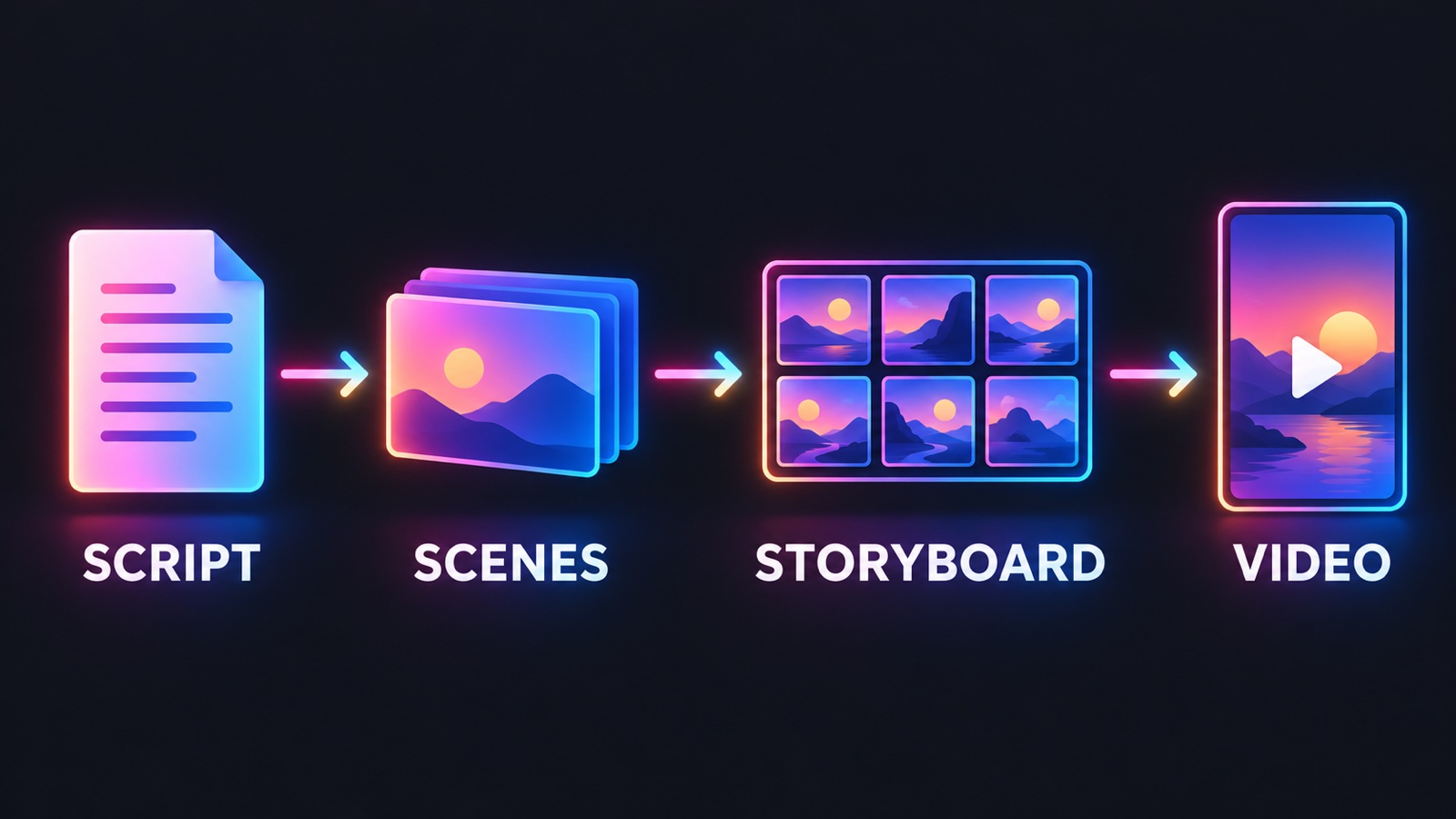 Four-step flow from script to scenes to storyboard to video.
A storyboard shows each shot as a frame before it becomes video. In Drama Studio, you can storyboard each scene first, so you see every shot as a frame before the scene is turned into video. You do not need to write a prompt for each shot. Drama Studio reads the scenes from your script.
On each frame, check:
- Is the place clear?
- Is the right character in the shot?
- Does the scene end on something that leads into the next one?
If a frame is wrong, fix it now. For more on this step, read our guide to storyboarding a script with AI or see the storyboard AI generator page.
6. Make each scene as video
When the storyboard looks right, turn each scene into video. Drama Studio makes 9:16 video by default, with 16:9, 21:9 and other ratios available. The credit cost is shown before you create, so you can decide whether to go ahead.
For scenes where the end of one shot has to match the start of the next, pick a first and last frame so the shots connect.
7. Review the video like a viewer
Watch each scene on a phone with the sound on. Then ask:
- Did the first seconds make it clear where we are?
- Do the characters look like the same people as in the previous scene?
- Does the scene end on a reason to keep watching?
Redo the weakest scene instead of the whole episode.
Common problems and quick fixes
| Problem | Likely cause | Fix |
|---|---|---|
| A character looks different between scenes | The look was not set once and reused | Check your cast, and use the same character each time |
| A scene feels flat | Nothing changes in it | Add one turn, or merge it with the next scene |
| Frames show the wrong place | The script does not say where | Add a clear place and time at the start of the scene |
| Too many shots for a small moment | The script spreads one beat over many lines | Trim the scene to its one beat |
How to do this in Wandura
- Open Drama Studio.
- Paste or write your script, upload a PDF, DOCX or TXT, or pick a sample story.
- Choose Single episode or Series.
- Check the episodes, characters and scenes it found.
- Build your cast and review the storyboard frames.
- Turn each scene into video.
For the full tool page, see script to video AI. New accounts get free credits, and the first result carries a wandura.ai watermark.
Frequently Asked Questions
What are the steps to turn a script into a video?
Get the script into clear scenes, lock your characters, check each scene as a storyboard frame, then make each scene as video. In Wandura, paste or upload your script in Drama Studio, review the storyboard frames drawn for each scene, then turn each scene into video.
How should I format a script for AI video?
Make each scene easy to read: say where and when it happens, name each character the same way every time, and write what we can see and hear. A plain line such as "INT. KITCHEN, NIGHT" is enough to open a scene, and one scene should carry one change.
Why does a character look different between scenes?
Usually the character's look was not set once and reused, or the character is named differently in different places in the script. Check your cast, use one name per character, and redo the scene that drifted.
What script formats can I use?
You can upload a PDF, DOCX or TXT file, or paste or write the script straight into Drama Studio.
Can I check the shots before they become video?
Yes. You can storyboard each scene first, so you see every shot as a frame before the scene is turned into video.
Can I make just one episode?
Yes. When you start from the script box in Drama Studio, you choose Single episode or Series.
Keep reading

How to Keep a Character Consistent in AI Video, Shot by Shot
How to Make a 30-Second AI Horror Film: Silence, Knock, Choice
Start creating with 70+ AI models
One account, one credit balance, every model. Pay only for what you generate.
See pricing