How to Make a Reusable AI Template for Photo or Video
Short answer: A reusable AI template is one playful idea that other people can run with their own photo, character or twist and still get a good result. To make one, pick a single effect, decide exactly what the user swaps in, keep everything else fixed, and test it with two different inputs before you share it.
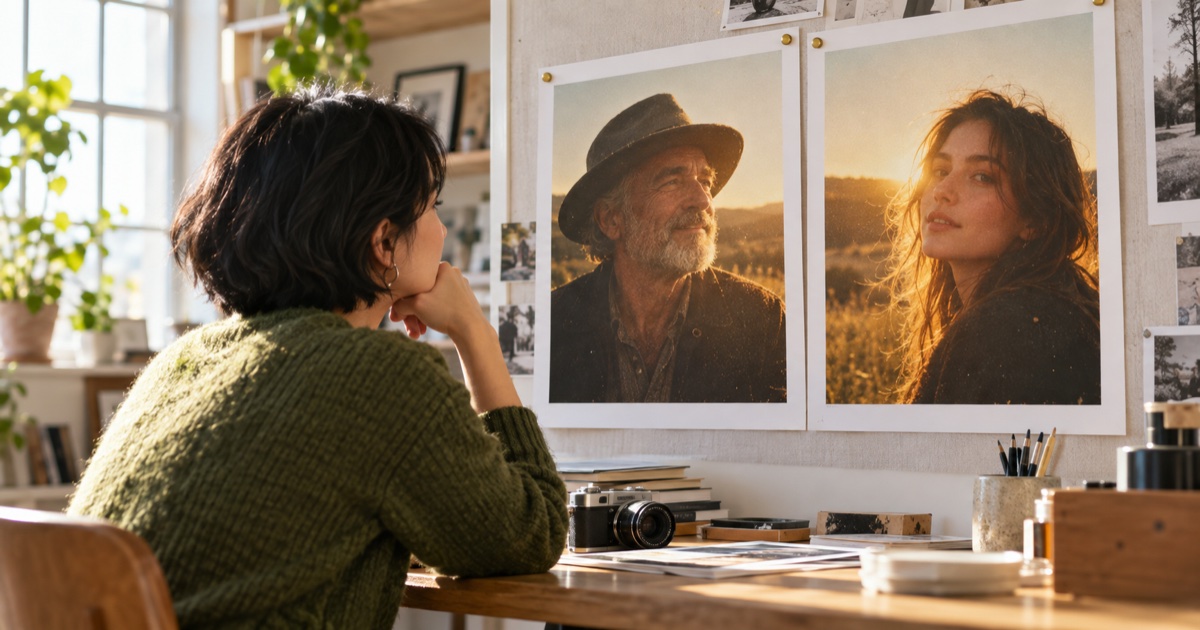
The test: if the effect only works with the photo you made it with, it is a nice picture, not a template.
One effect, two different inputs: the result should hold up on both.
A good template feels simple. Someone sees a short clip or a photo, thinks "I want that with my own picture", and can do it in a minute. Behind that simplicity there is a small amount of design work. This guide walks through it. If you are new to AI video, how to make AI video covers the basic steps, and how to make an AI animation from text shows how to keep one look across several shots.
1. Start with one playful idea
Write the idea in one sentence:
[Subject] becomes [a transformation, a reveal or a movie moment].
For example: a pet becomes the star of a retro movie poster, or a couple turns into a dance-floor spotlight number. The idea can be a transformation, a reveal or a moment from a film. It does not need to be an ad.
Ask one question: why would someone want to try this? If the answer is "because it is fun to watch and fun to share", keep going. If you cannot answer it in a sentence, simplify the idea.
Ideas that tend to work well sit in a few familiar areas: dance and music, portraits, couples, fashion, cinematic moments, celebrations and plain fun.
 Try the idea on a real input before you build the template.
2. Decide what the user swaps in
This is the step most first templates skip. Write down, in a short list, the parts the user can change:
| Part | Example |
|---|---|
| Input | one clear portrait, a pet photo, a couple photo |
| Style or setting | the same effect in different colours or locations |
| Optional twist | a name, an outfit, a mood |
Everything not on the list stays fixed. The fewer things a user has to decide, the more likely they finish.
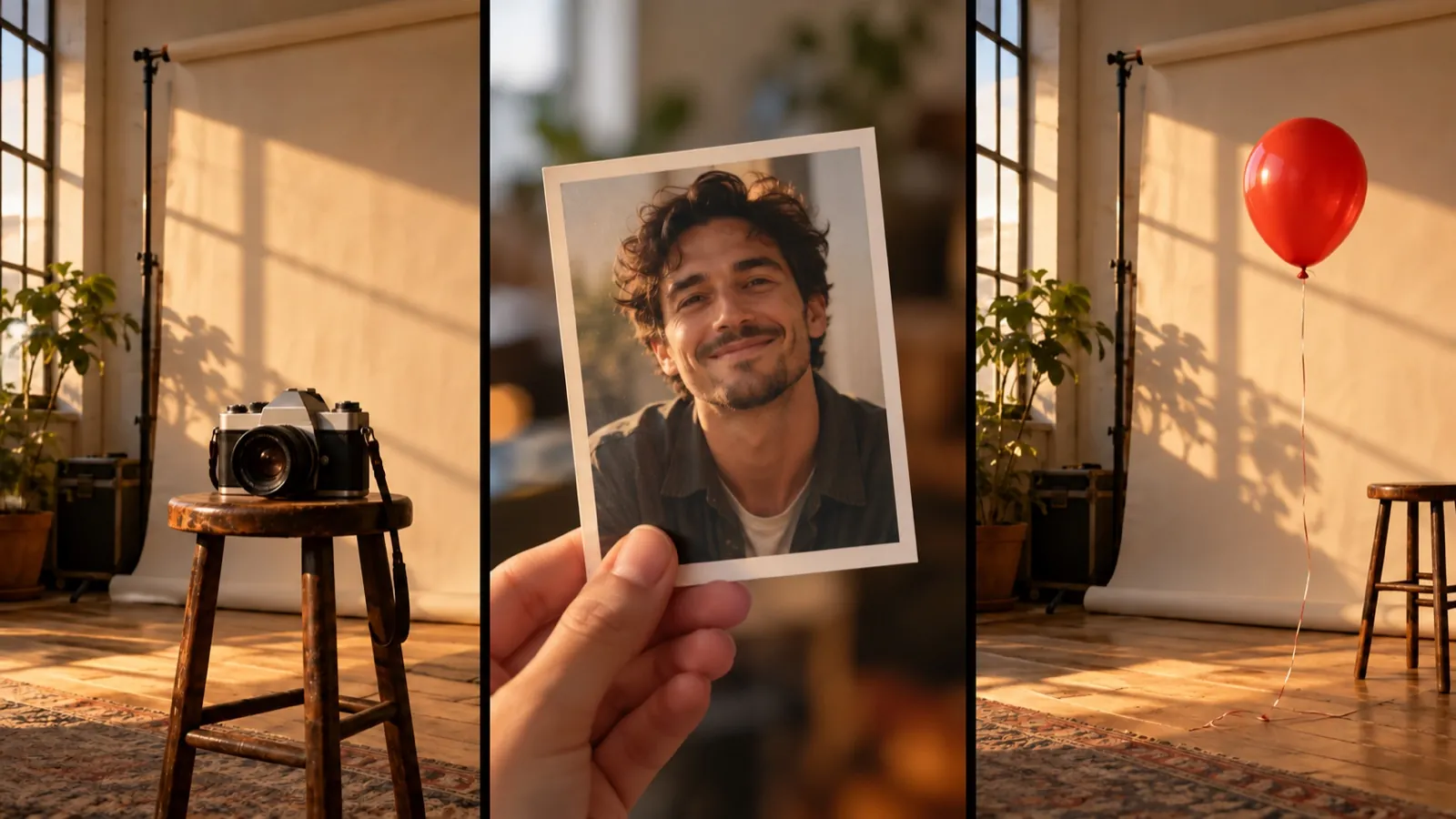 The fixed scene, the photo the user brings, an optional prop.
3. Make the effect repeatable
A template is a workflow, not a single lucky result. Run your idea several times and watch what changes.
- Does the effect still work when the face is smaller, darker or turned to the side?
- Does it still work with a different background or a different skin tone, hair colour or outfit?
- Does the subject keep the same look from the first frame to the last, if it is a video?
If one input breaks the effect, either narrow the input guide ("one clear front-facing portrait") or fix the idea. Narrowing the guide is a perfectly good answer.
4. Test it with two different results
Before you share a template, make two different results with it, using two different inputs. Put them next to each other. If both look good and clearly come from the same idea, you have something repeatable. If one is clearly weaker, go back to step 3.
Two results are a minimum, not a guarantee. They are a quick, honest check that the effect is not tied to one photo. To compare the video tools and models you could build a template on, see our roundup of AI video generators.
5. Add a short demo and an input guide
People decide in seconds. Give them two things:
- A demo. A short clip or a before and after that shows the result.
- An input guide. Two or three lines that tell users what to bring: "one clear portrait, face visible, good light".
Keep the guide plain. Do not make people read a paragraph to use a template.
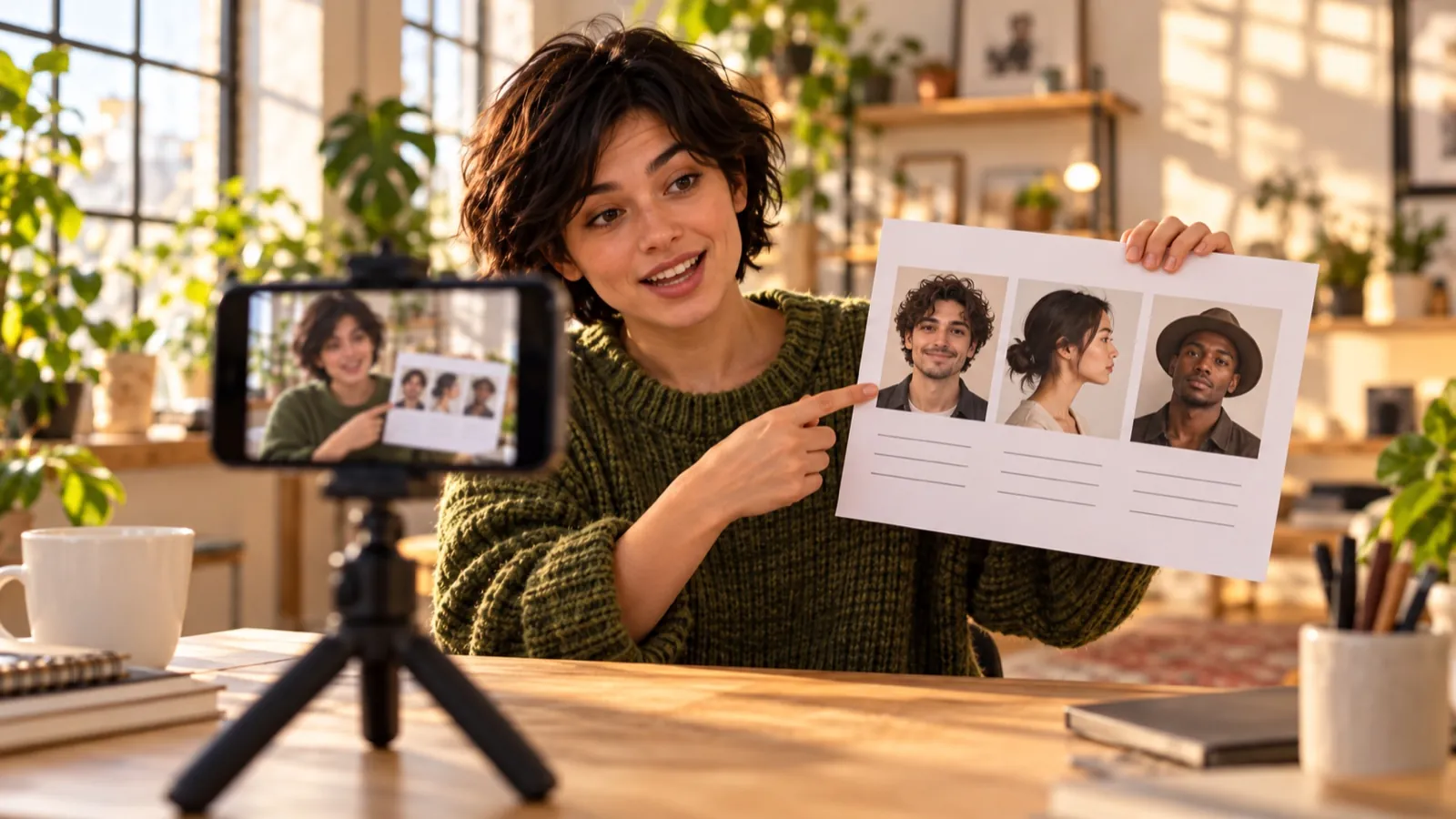 A short demo and a clear input guide help other people get a good result.
6. Keep it safe to use
Do not use anyone's face or voice without their consent. Do not impersonate real people. Choose ideas that stay inside Wandura AI's content rules. A template that other people will run should be safe to run.
Try it in the Template Challenge
If you want to put your idea in front of other creators, the Wandura AI Template Challenge is built around exactly this kind of work: playful photo and video ideas that others can reuse. Entries are templates that come with a working workflow, a demo and a clear input guide, and the page asks for ideas that are fun, adaptable and repeatable. You can read the current details on the Template Challenge page, including how to enter and how rewards work.
Quick checklist
- One idea, one sentence.
- A written list of what the user swaps in.
- Tested on at least two different inputs.
- A short demo and a short input guide.
- No one's face or voice without consent.
Frequently Asked Questions
What is an AI template?
A reusable idea: a workflow with a clear input, a demo and a result that other people can reproduce with their own photo, character or twist.
Does a template have to be an ad?
No. It can be a transformation, a reveal, a dance, a portrait style or a movie moment.
How many tests are enough before I share it?
Make at least two different results with two different inputs. If you can, try a few more, especially with inputs that look different from yours.
Can I use a friend's photo to test?
Only with their consent. Never use someone's face or voice without it.
Keep reading
How to Keep a Character Consistent in AI Video, Shot by Shot
How to Make a 30-Second AI Horror Film: Silence, Knock, Choice
Start creating with 70+ AI models
One account, one credit balance, every model. Pay only for what you generate.
See pricing