How to Use Mimic Motion: Turn a Photo and a Reference Video Into Motion
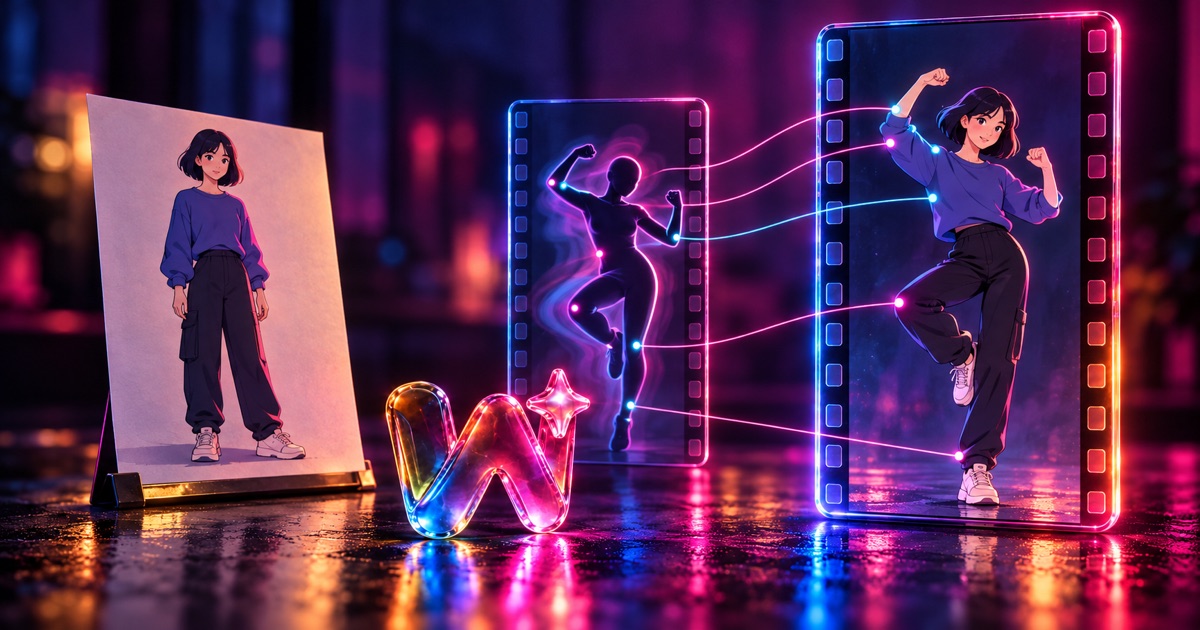
Short answer: To use Mimic Motion, open the Mimic Motion tool, upload a clear photo of your character, add a reference video with the movement you want to copy, pick Follow video or Follow image, and create.
The character in your photo then performs the same movement, and the cost is shown before you create.
Mimic Motion is Wandura's motion transfer tool. It takes the movement from a reference video, such as a dance, a wave or a walk, and applies it to the person in your photo. You need two files: a still image of the character and a short clip of someone doing the movement.
This guide covers what each file needs, the steps in the tool, the two orientation modes and the most common problems. The limits quoted here are what the upload slots show today; check them again before you upload.
What Mimic Motion does, and how it differs from other tools
Mimic Motion copies the motion from a real clip onto a still character. Two other tools sound similar:
- Image to video animates a photo from a text motion prompt. You describe the movement in words, for example a slow zoom or a subject that turns and smiles.
- Face swap video keeps the body and movement of the clip and replaces the face.
- Mimic Motion keeps the character from your photo and borrows only the movement from the clip.
If you want a gesture or dance done exactly the way someone performs it, use Mimic Motion. If you can describe the movement in a sentence, image to video is simpler. If you are new to AI video in general, start with how to make AI video.
The tool runs on Kling 3.0 Motion Control, and the composer also offers Kling 2.6 Motion Control, labelled "Faster · cheaper". If you want to generate with Kling 3.0 from a text prompt or a photo instead, see the Kling 3.0 model page and our guide on how to use Kling 3.0.
What you need before you start
| Input | What the tool asks for today | Required? |
|---|---|---|
| Character image | A clear, well-lit photo, full or upper body, head fully visible and not blocked, subject filling at least 5% of the frame | Yes |
| Motion template (video) | One continuous shot, steady camera, subject always in frame; up to 30 seconds with Follow video or 10 seconds with Follow image; 540 to 2048 pixels per side; MP4, MOV or WebM up to 50 MB | Yes |
| Face reference | A frontal face photo of the same character; Kling 3.0 Motion Control only, used with Follow video | Optional |
| Prompt | Extra guidance for the motion | Optional |
There is also a Keep original sound option for the sound of your motion video. Check it before you create if you want the clip's audio in the result.
How to use Mimic Motion, step by step
- Open the tool. Go to Mimic Motion. You can open the tool and add your files without signing in. When you press Generate, Wandura asks you to sign in or create an account, and the generation uses credits from your plan.
- Upload your photo. Add the character image. Full body works with a full-body clip; upper body works with an upper-body clip.
- Add the motion template. Upload or record a video of the movement you want to copy.
- Pick the model and the orientation. Kling 3.0 Motion Control is the first model in the list; Kling 2.6 Motion Control is the faster, cheaper option. Then choose Follow video or Follow image (see below).
- Add the optional extras. On Kling 3.0 Motion Control with Follow video, attach a face reference to keep the identity steady. Add a short prompt if you want to guide the motion, and set Keep original sound.
- Check the cost and create. The price depends on the model and the length of your motion video. The composer reads the length of your clip and shows the exact cost before you create.
- Collect the result. The run happens in the cloud and is saved even if you leave the page. The video lands in your Creations, where you can download the MP4.
How to choose a photo that transfers well
The photo decides who appears in the video, and small flaws grow once the character moves.
- Make the subject big enough. The tool asks for at least 5% of the frame; if the person is small, crop closer.
- Show the head clearly. No hats pulled low, no hair over the face, no hands in front of it.
- Face the camera. Front-facing subjects with clear body proportions transfer most accurately.
- Match the framing to the clip. A full-body photo goes with a full-body clip. A close-up portrait paired with a wide dance clip makes the model guess at the parts it cannot see.
- Use a photo you have the right to use. Your own photo, a character you designed, or someone who has agreed to it.
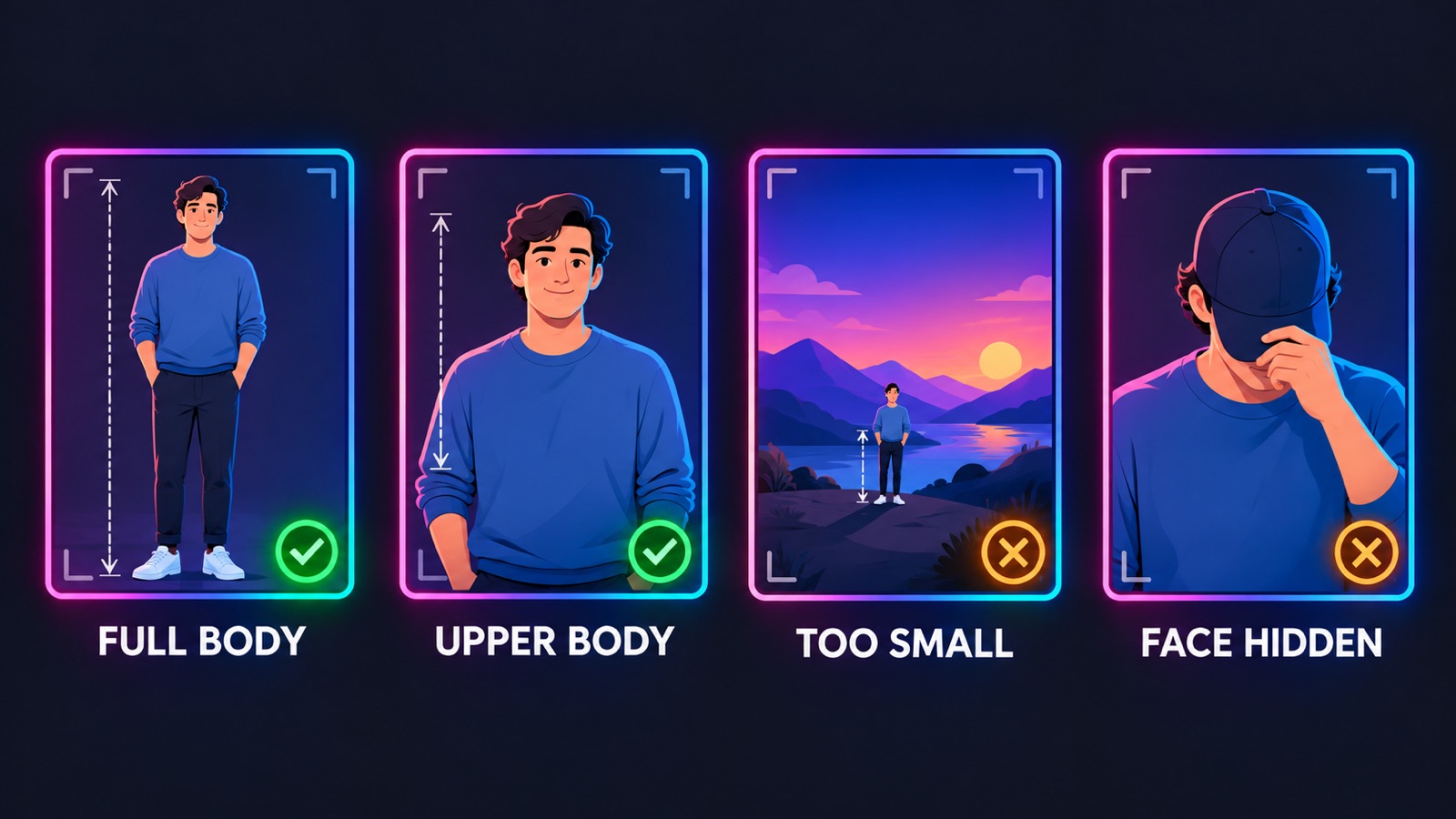 Match full body to full body and upper body to upper body.
How to pick or film the reference video
The motion template decides what the character does. You can use any clip whose movement you want to copy, including one you film yourself.
- Film one clean take. One continuous shot, no cuts. A tripod or a steady surface stops camera shake from becoming jumpy motion.
- Keep the whole body in view from start to end. If the feet leave the frame, the result has to invent them.
- Keep the hands and face visible. Crossed arms, props that hide the hands and hair over the face are the details most likely to drift.
- Slow down fast head turns. Quick turns are where faces change between frames.
- Trim to the part you need. Cost is based on the length of the motion video you add, so a clip trimmed to the move you want also keeps the price down.
Copying dance moves to a photo works the same way: a dance clip filmed in one take with the dancer fully in frame, paired with a full-body photo. Readable moves transfer better than very fast footwork.
Follow video or Follow image?
On Kling 3.0 Motion Control the composer shows two orientation modes, and each one shows its own maximum clip length.
| Mode | What it keeps | Longest motion clip | Face reference |
|---|---|---|---|
| Follow video | The facing and framing of the motion clip | 30 seconds | Can be attached on Kling 3.0 Motion Control |
| Follow image | The original facing of your photo | 10 seconds | Not used |
Choose Follow video for turns, walks or templates longer than 10 seconds. Choose Follow image when the character should keep facing the way it does in your photo, for example a portrait that waves or nods.
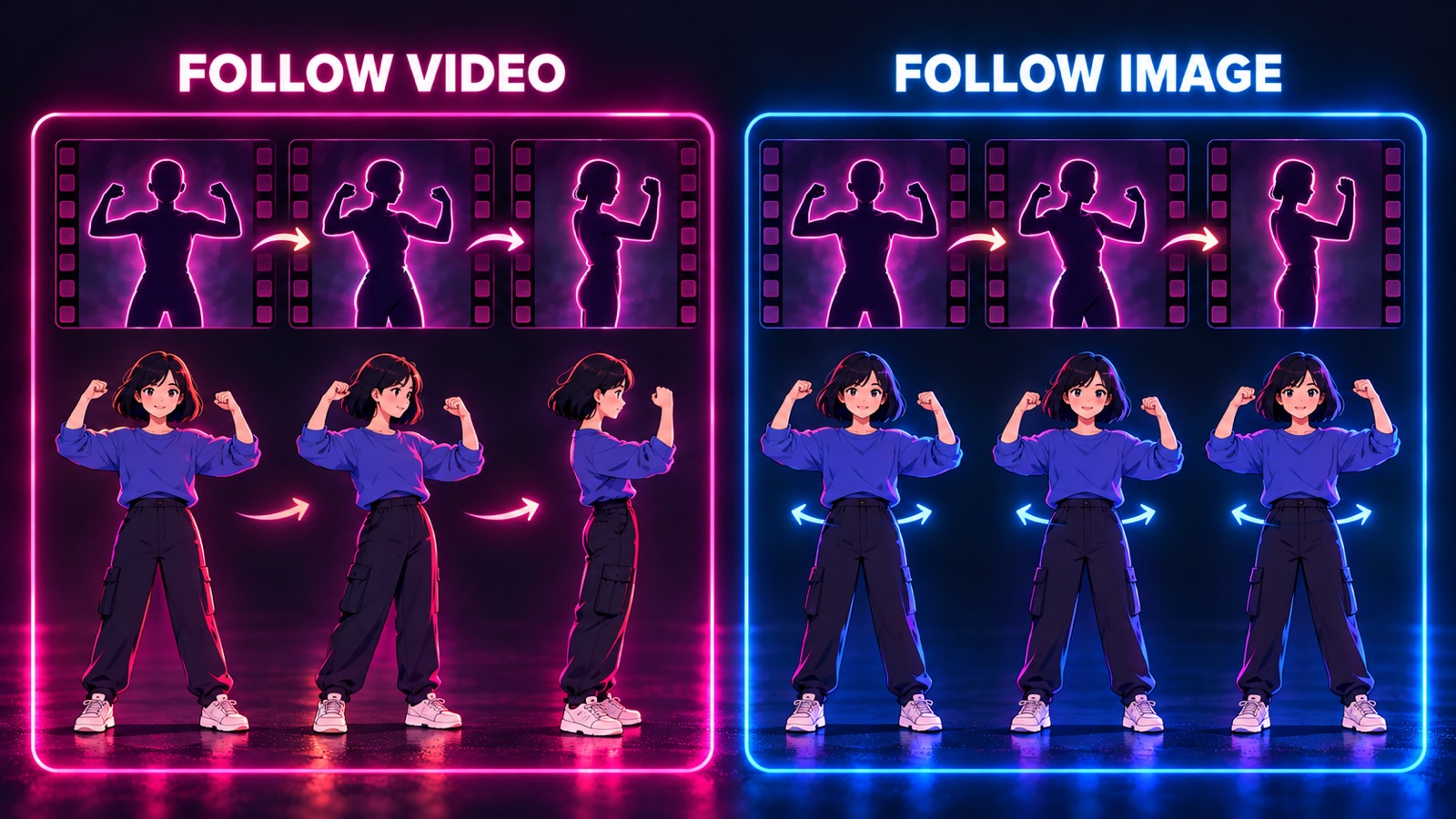 Follow video turns with the clip; Follow image keeps the photo's facing.
Common problems and how to fix them
Most motion transfer problems start in the inputs, so check these before you spend credits on a retry.
| What you see | Likely cause | What to try |
|---|---|---|
| Blurred or unstable face and hands | Subject small in frame | Crop the photo closer so the person fills more of the frame |
| Jumps or broken motion | Camera cuts or shake in the clip | Use one continuous, steady shot |
| The character stops looking like the person, fingers merge | Face or hands covered | Pick a clip where the face and hands stay visible |
| The face changes between frames | Fast head turns | Slow the movement, or attach a face reference on Kling 3.0 Motion Control |
| Stretched or cropped body | Different framing in photo and clip | Match full body to full body, upper body to upper body |
| The upload is refused | Clip too long, too large or the wrong size | Check the limits under the upload slot and trim or re-export the clip |
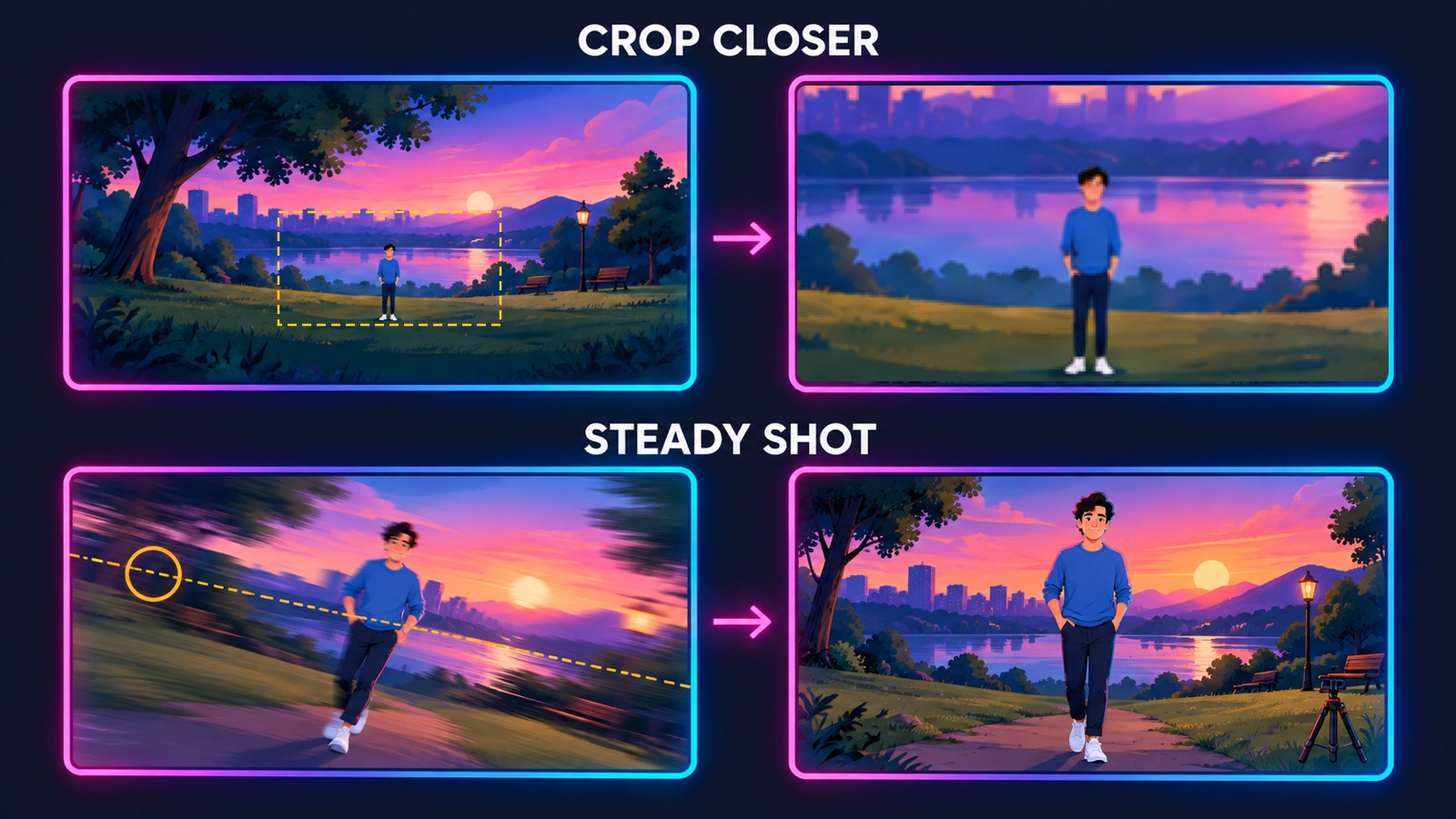 Fix the inputs first: crop closer, steady the camera, keep hands and face visible.
What to do with the result
Creators turn a portrait into a greeting, a reaction or a dance clip. Marketers turn a brand character or founder photo into a moving presenter and change the motion by swapping templates instead of booking a new shoot.
If you need a sharper file before you post, run it through the video upscaler. If you want movement that nobody has filmed, use image to video and describe it in a prompt. To tell a longer story with the same character, see how to make an AI animation from text, and to compare other video tools, see our roundup of AI video generators.
Frequently Asked Questions
How do I use Mimic Motion?
Open the Mimic Motion tool, upload a clear photo of your character, add a reference video with the movement you want to copy, choose Follow video or Follow image, add a face reference or prompt if you want, check the cost shown and create. The result is saved to your Creations.
What kind of photo works with Mimic Motion?
A sharp, well-lit photo where the subject fills at least 5% of the frame, with the full or upper body visible and the head unobstructed. Front-facing subjects with clear body proportions transfer most accurately.
How long can the reference video be?
Up to 30 seconds with Follow video and up to 10 seconds with Follow image. The clip should be one continuous shot with a steady camera, 540 to 2048 pixels per side, in MP4, MOV or WebM up to 50 MB.
Can I copy dance moves to a photo?
Yes. Use a dance clip filmed in one take with the dancer fully in frame, pair it with a full-body photo, and choose Follow video if the dance includes turns.
Should I use Follow video or Follow image?
Follow video keeps the facing and framing of the motion clip and allows longer clips. Follow image keeps the original facing of your photo and allows shorter clips. Use Follow video for turns and walks, and Follow image for a portrait that should keep facing the same way.
Why does the face change during the video?
Usually the subject is too small in the photo, the face or hands are covered, or the clip has fast head turns or camera shake. Fix the inputs, and on Kling 3.0 Motion Control with Follow video attach a frontal face reference of the same person.
How much does Mimic Motion cost?
Mimic Motion is paid in Wandura credits. The cost depends on the model and the length of your motion video, and the composer shows the exact price before you create.
Keep reading
How to Keep a Character Consistent in AI Video, Shot by Shot
How to Make a 30-Second AI Horror Film: Silence, Knock, Choice
Start creating with 70+ AI models
One account, one credit balance, every model. Pay only for what you generate.
See pricing